> ## Documentation Index
> Fetch the complete documentation index at: https://dripart-feat-openapi-i18n.mintlify.site/llms.txt
> Use this file to discover all available pages before exploring further.
# Comfy Cloud MCP
> Connect Comfy Cloud MCP from Claude Code, Claude Desktop, Cursor, Codex, or any MCP-compatible agent — generate images, video, audio, and 3D, search models and nodes, and run workflows.
This is a **Comfy Cloud** feature and is only available in the cloud version. To learn more about Comfy Cloud, see [Comfy Cloud](/get_started/cloud).
**Public beta.** Comfy Cloud MCP is in public beta. APIs, tools, and behavior may change while we iterate. See [Feedback](#feedback) to report issues or share suggestions.
## Overview
The **Comfy Cloud MCP server** connects AI agents to [Comfy Cloud](https://cloud.comfy.org) over the [Model Context Protocol](https://modelcontextprotocol.io). Once connected, you can generate images, video, audio, and 3D, search models, nodes, and templates, and run ComfyUI workflows from a chat with your agent.
The server runs remotely at `cloud.comfy.org/mcp`. Workflows execute on Comfy Cloud GPUs, so you do not need a local GPU. Your agent talks to the server over HTTPS; the server translates tool calls into authenticated requests to Comfy Cloud on your behalf.
Any **MCP-compatible client** can connect to the same server URL. **Claude Code**, **Claude Desktop**, **Cursor**, and **Codex** have first-class setup below. **Windsurf**, **Amp**, and other agents use the same URL with OAuth or an API key.
## Install Comfy Cloud MCP
You need a [Comfy Cloud](https://cloud.comfy.org) account before connecting. [Sign up](https://cloud.comfy.org) if you do not have one yet. OAuth sign-in during setup uses your Comfy account.
Comfy Cloud MCP runs at:
```
https://cloud.comfy.org/mcp
```
Pick your client:
Install the **comfy-cloud** plugin. It adds the MCP connection and slash commands in one step. The plugin is published through the [Comfy Skills](https://github.com/Comfy-Org/comfy-skills/) repository, which hosts Claude Code plugins and community agent skills for Comfy.
Register the Comfy Skills marketplace (one-time):
```
/plugin marketplace add Comfy-Org/comfy-skills
```
```
/plugin install comfy-cloud@comfy-skills
```
Run `/mcp`, select **comfy-cloud** → **Authenticate**. Your browser opens to sign in, and tokens refresh automatically.
The plugin adds these slash commands:
| Command | What it does |
| -------------------------------- | ------------------------------------------------------------------- |
| `/comfy-cloud:generate-image` | Generate, edit, or modify an image |
| `/comfy-cloud:generate-video` | Generate, edit, or extend a video |
| `/comfy-cloud:generate-audio` | Generate audio, music, or sound effects |
| `/comfy-cloud:generate-3d` | Generate a 3D model from text or an image |
| `/comfy-cloud:remove-background` | Remove the background from an image |
| `/comfy-cloud:upscale-image` | Upscale an image to higher resolution |
| `/comfy-cloud:search-templates` | Find pre-built workflow templates on [comfy.org](https://comfy.org) |
| `/comfy-cloud:search-models` | Search for available models |
| `/comfy-cloud:search-nodes` | Search for nodes and get wiring suggestions |
| `/comfy-cloud:help` | See what you can do with ComfyUI Cloud |
Add the server directly:
```bash theme={null}
claude mcp add --transport http comfy-cloud https://cloud.comfy.org/mcp
```
Then run `/mcp`, select **comfy-cloud** → **Authenticate**. Add `-s user` to make it available in all your projects.
This path still exposes the same workflows as MCP prompts: `/mcp__comfy-cloud__generate-image`, `/mcp__comfy-cloud__search-models`, and so on (the `/mcp____` prefix uses the name you passed to `claude mcp add`). The plugin above is recommended because it wraps these as the friendlier `/comfy-cloud:*` commands.
Claude Desktop adds Comfy Cloud as a **custom connector** through its UI, then runs the OAuth sign-in.
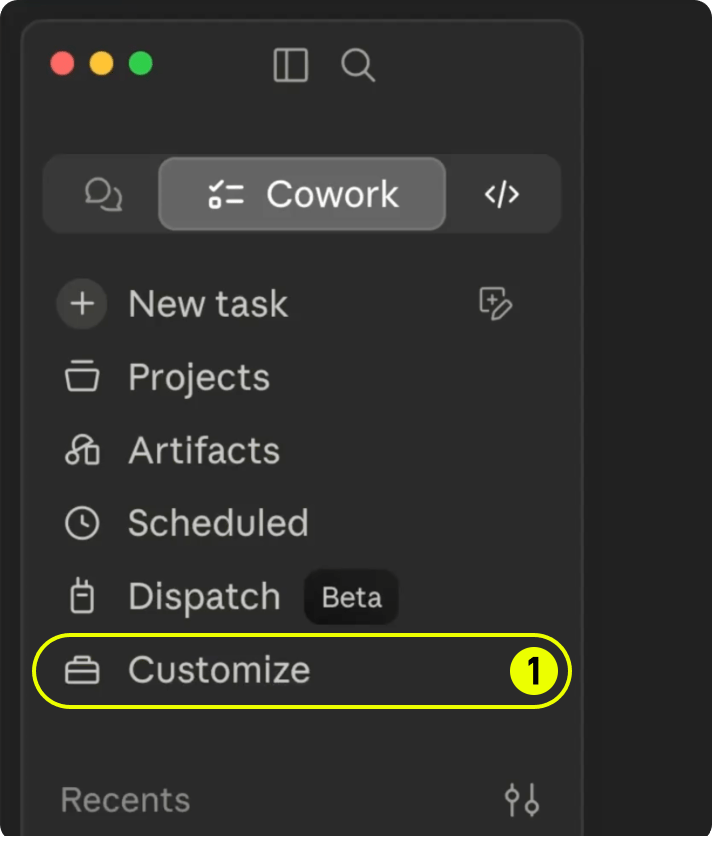
In the sidebar, click **Customize** (labeled **1**).
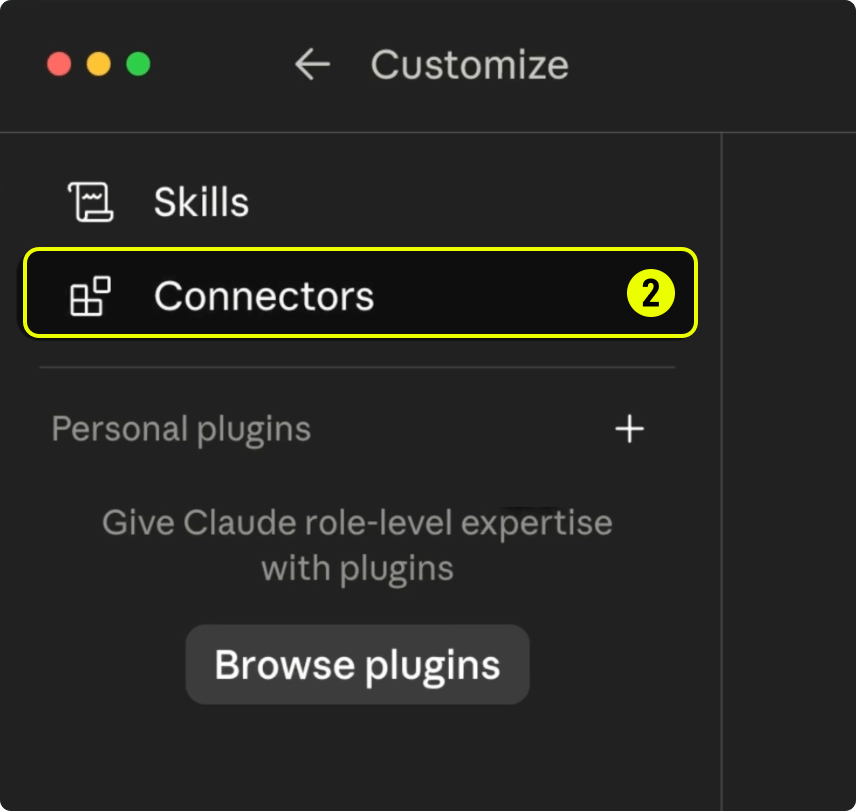
 Click **Connectors** (labeled **2**).
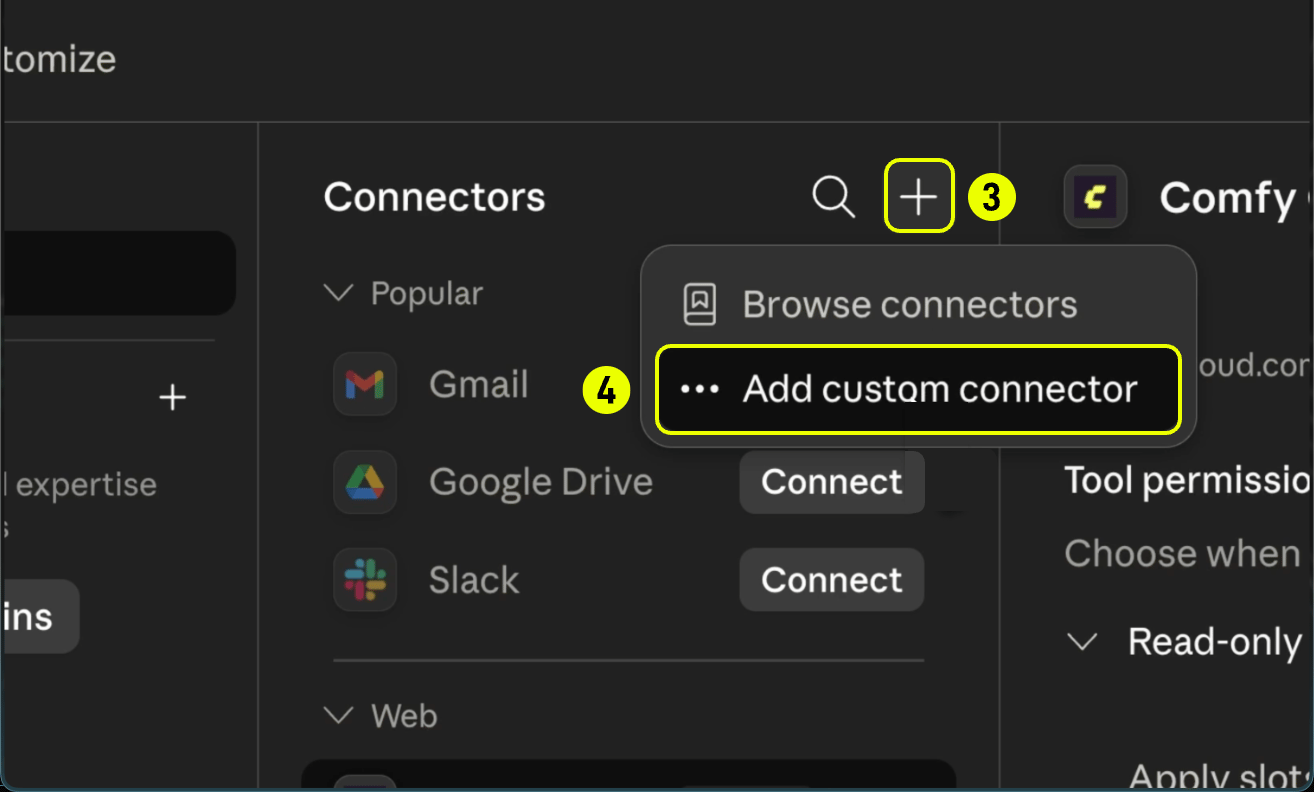
 1. Click the **+** button (labeled **3**) in the Connectors header.
2. Choose **Add custom connector** (labeled **4**).
1. Click the **+** button (labeled **3**) in the Connectors header.
2. Choose **Add custom connector** (labeled **4**).
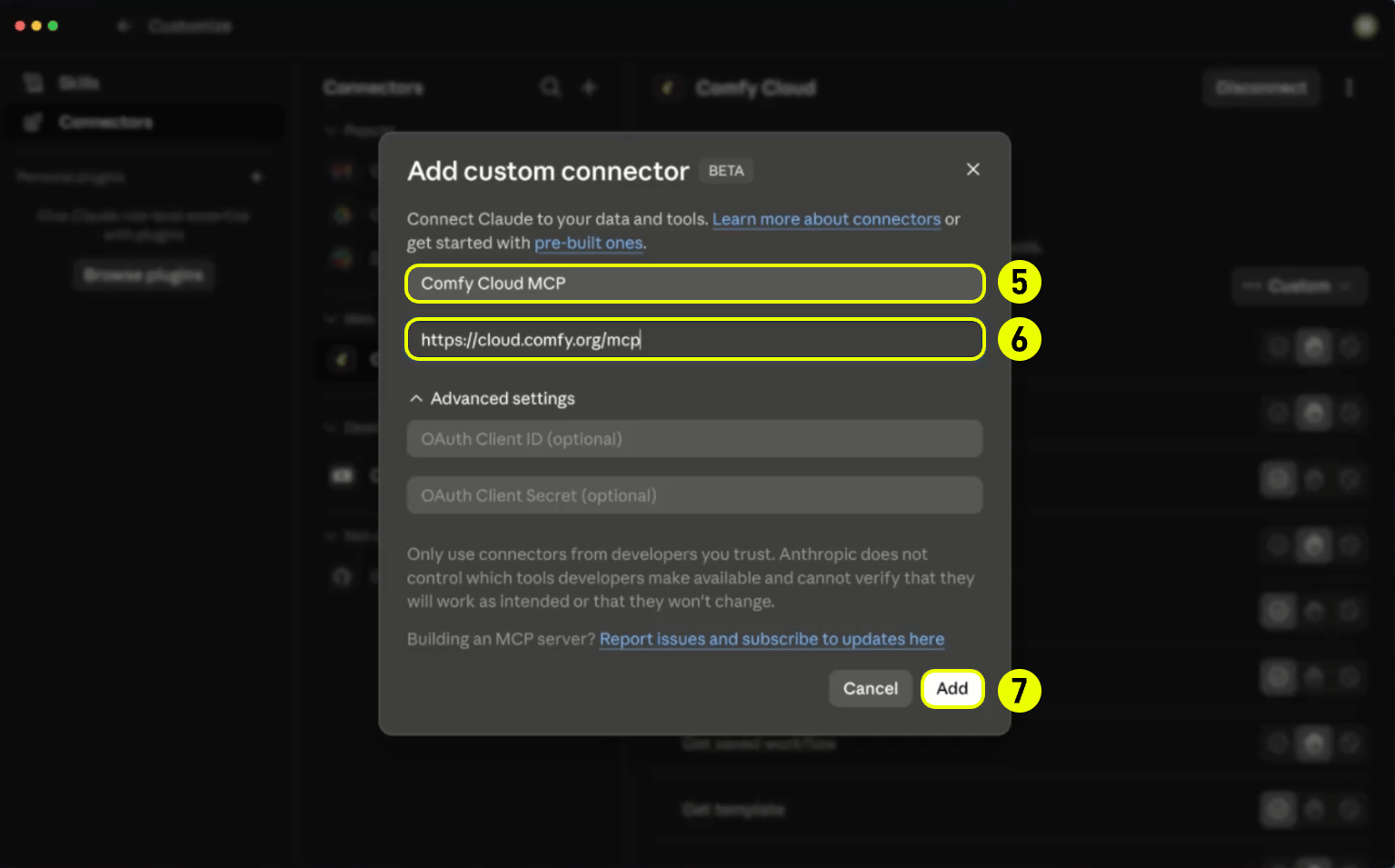
 1. Enter a name such as **Comfy Cloud MCP** in the **Name** field (labeled **5**).
2. Set the **Remote MCP server URL** to `https://cloud.comfy.org/mcp` (labeled **6**).
3. Click **Add** (labeled **7**).
1. Enter a name such as **Comfy Cloud MCP** in the **Name** field (labeled **5**).
2. Set the **Remote MCP server URL** to `https://cloud.comfy.org/mcp` (labeled **6**).
3. Click **Add** (labeled **7**).
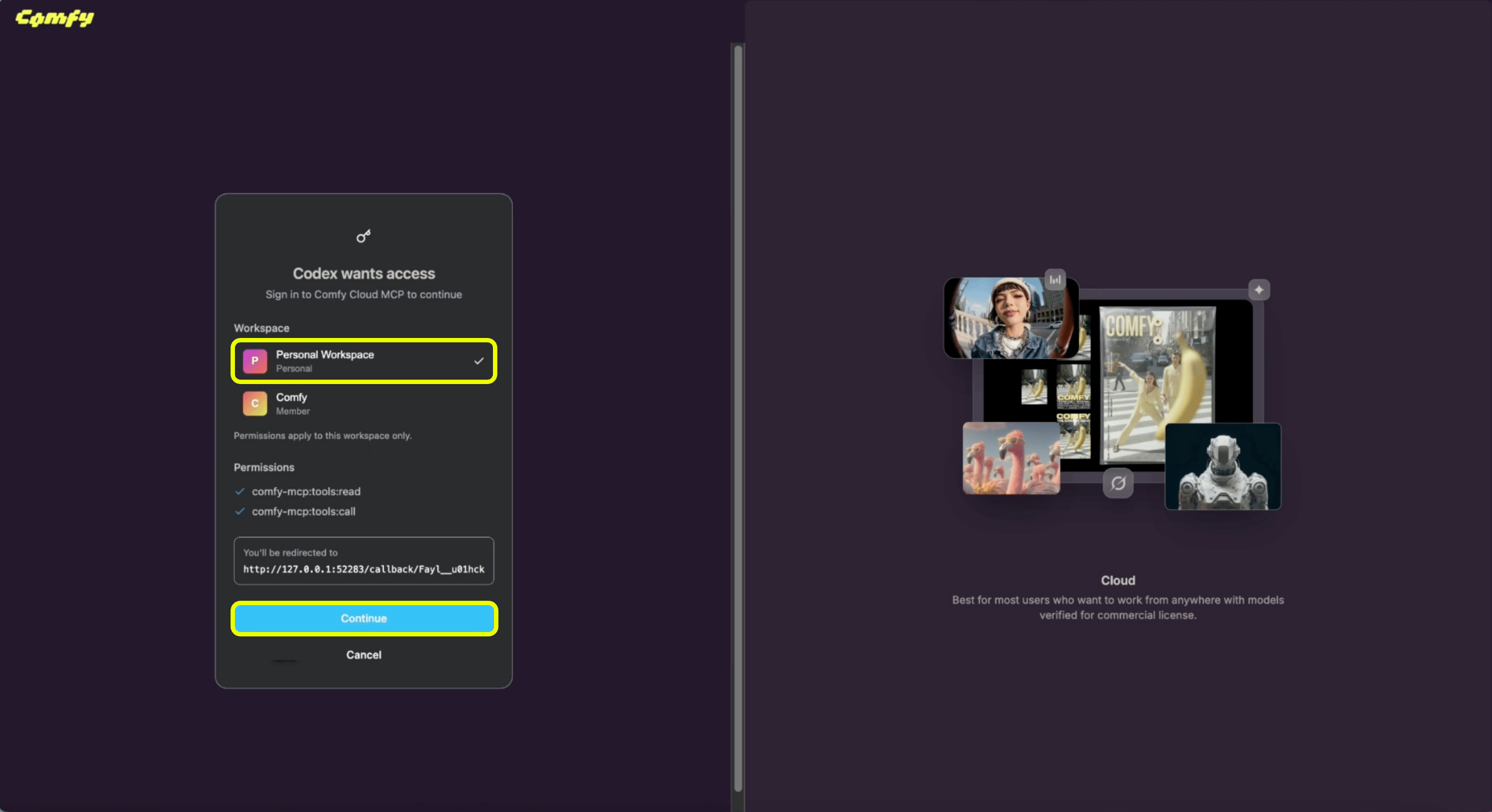
 1. When the browser opens, choose your workspace (for example **Personal Workspace**).
2. Click **Continue** to authorize the connector. You are connected.
1. When the browser opens, choose your workspace (for example **Personal Workspace**).
2. Click **Continue** to authorize the connector. You are connected.
 Claude Desktop does not support Claude Code slash commands. Instead, open the **prompt picker** for the same workflows:
| Prompt | Description |
| ------------------- | -------------------------------------------- |
| `generate-image` | Generate an image from a text description |
| `generate-video` | Generate a video from text or an image |
| `generate-audio` | Generate audio, music, or sound effects |
| `generate-3d` | Generate a 3D model from text or an image |
| `upscale-image` | Upscale an image to higher resolution |
| `remove-background` | Remove the background from an image |
| `search-templates` | Find pre-built workflow templates |
| `search-models` | Search for models (checkpoints, LoRAs, VAEs) |
| `search-nodes` | Search nodes and get wiring suggestions |
| `help` | See what you can do with ComfyUI Cloud |
You can also skip prompts and ask in plain language. The MCP tools work the same way.
Cursor connects to remote MCP servers over HTTP. Cursor does **not** support MCP OAuth today. Add Comfy Cloud with a Comfy Cloud API key in your MCP config.
Click the **Settings** gear in the top-right corner (labeled **1**).
Claude Desktop does not support Claude Code slash commands. Instead, open the **prompt picker** for the same workflows:
| Prompt | Description |
| ------------------- | -------------------------------------------- |
| `generate-image` | Generate an image from a text description |
| `generate-video` | Generate a video from text or an image |
| `generate-audio` | Generate audio, music, or sound effects |
| `generate-3d` | Generate a 3D model from text or an image |
| `upscale-image` | Upscale an image to higher resolution |
| `remove-background` | Remove the background from an image |
| `search-templates` | Find pre-built workflow templates |
| `search-models` | Search for models (checkpoints, LoRAs, VAEs) |
| `search-nodes` | Search nodes and get wiring suggestions |
| `help` | See what you can do with ComfyUI Cloud |
You can also skip prompts and ask in plain language. The MCP tools work the same way.
Cursor connects to remote MCP servers over HTTP. Cursor does **not** support MCP OAuth today. Add Comfy Cloud with a Comfy Cloud API key in your MCP config.
Click the **Settings** gear in the top-right corner (labeled **1**).
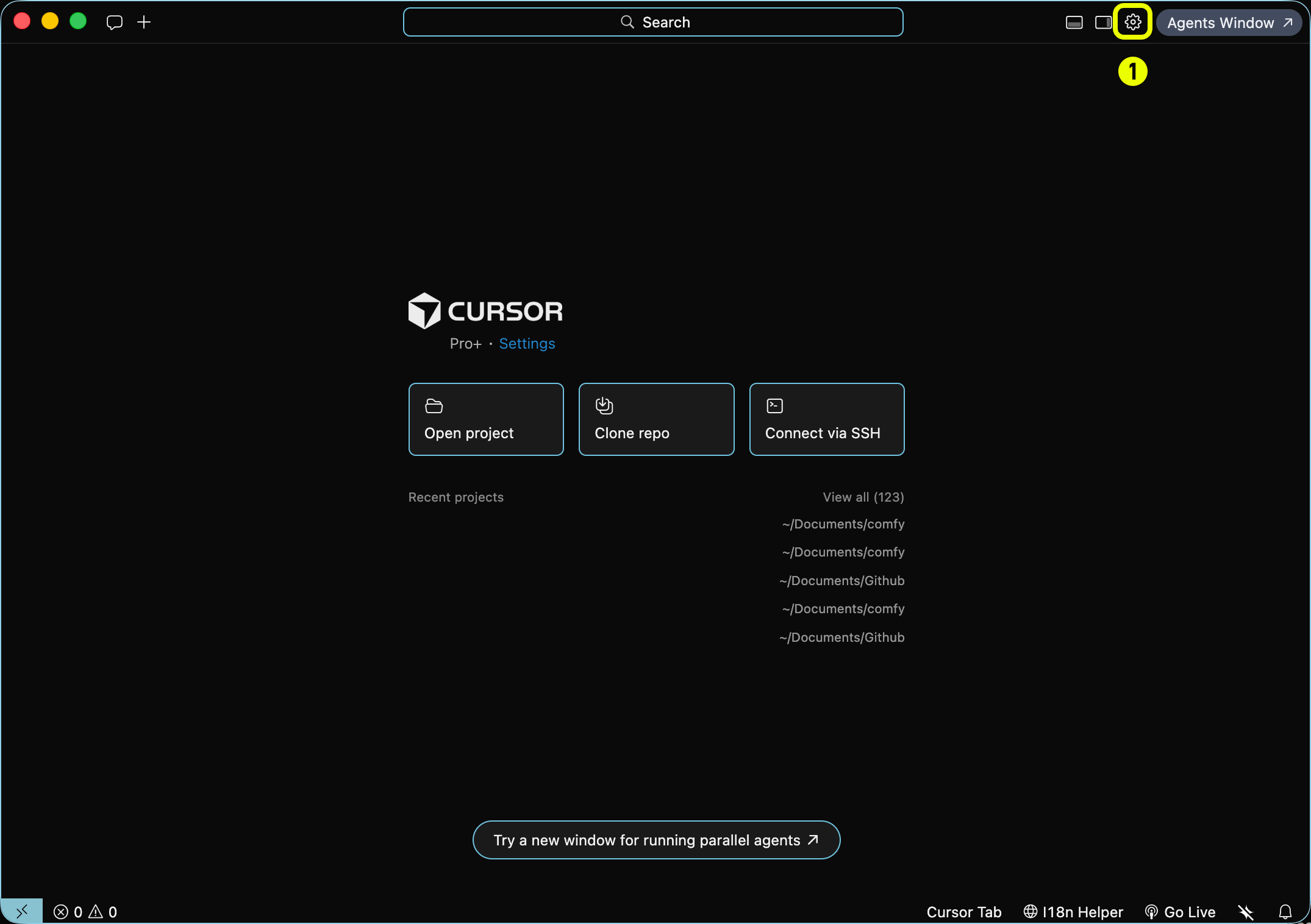 1. In the sidebar, click **Tools & MCPs** (labeled **2**).
2. Click **+ New MCP Server** (labeled **3**) → **Add a Custom MCP Server**.
1. In the sidebar, click **Tools & MCPs** (labeled **2**).
2. Click **+ New MCP Server** (labeled **3**) → **Add a Custom MCP Server**.
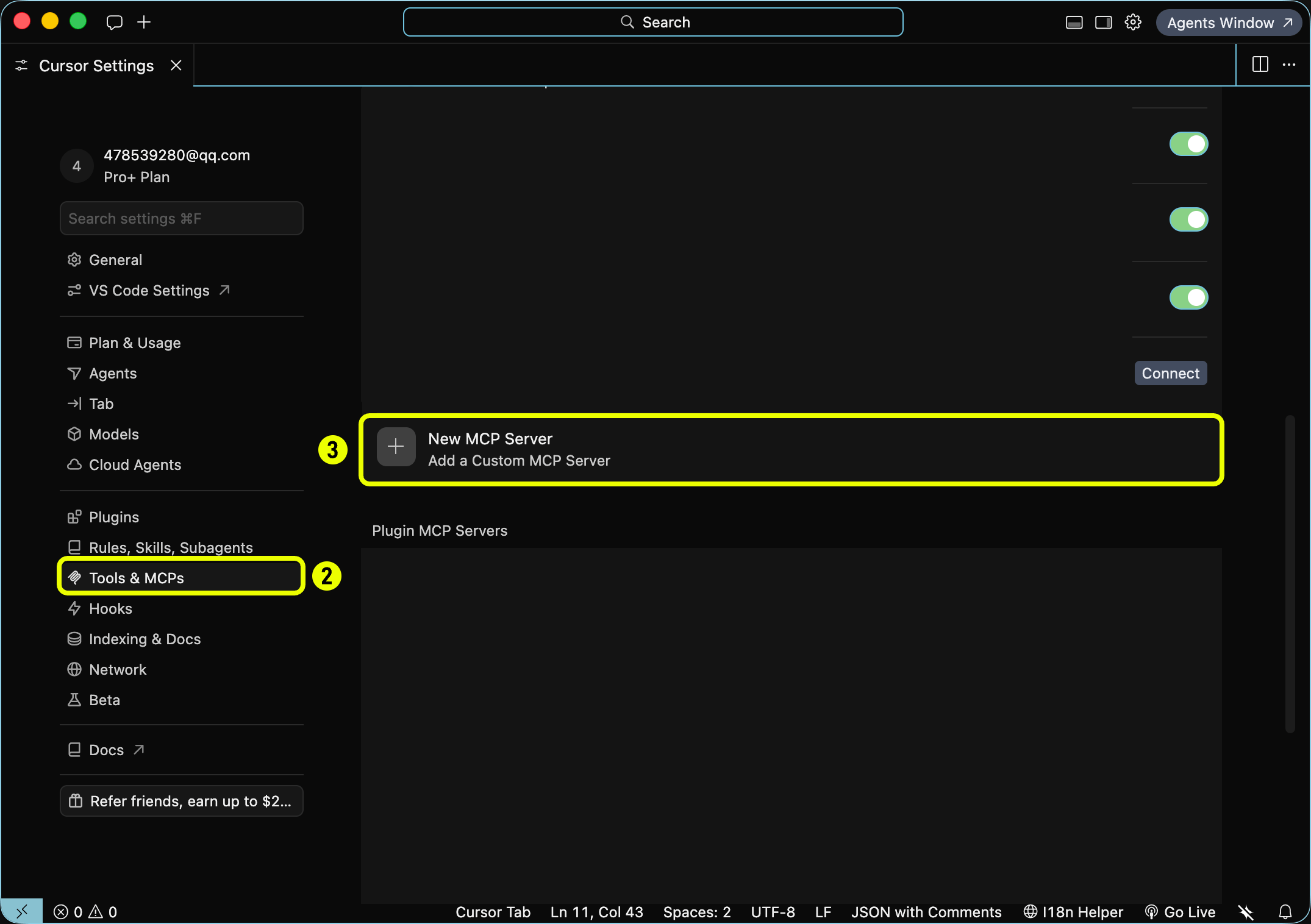 Edit `~/.cursor/mcp.json` (global) or `.cursor/mcp.json` (project). Set the server URL and pass your Comfy Cloud API key in the `X-API-Key` header. Create a key at [platform.comfy.org/profile/api-keys](https://platform.comfy.org/profile/api-keys) (starts with `comfyui-`):
```json theme={null}
{
"mcpServers": {
"comfy-cloud": {
"url": "https://cloud.comfy.org/mcp",
"headers": {
"X-API-Key": "${env:COMFY_API_KEY}"
}
}
}
}
```
Set `COMFY_API_KEY` in your shell or system environment. Prefer `${env:COMFY_API_KEY}` over hardcoding the key in a file you might commit to git.
Edit `~/.cursor/mcp.json` (global) or `.cursor/mcp.json` (project). Set the server URL and pass your Comfy Cloud API key in the `X-API-Key` header. Create a key at [platform.comfy.org/profile/api-keys](https://platform.comfy.org/profile/api-keys) (starts with `comfyui-`):
```json theme={null}
{
"mcpServers": {
"comfy-cloud": {
"url": "https://cloud.comfy.org/mcp",
"headers": {
"X-API-Key": "${env:COMFY_API_KEY}"
}
}
}
}
```
Set `COMFY_API_KEY` in your shell or system environment. Prefer `${env:COMFY_API_KEY}` over hardcoding the key in a file you might commit to git.
 Ask in plain language ("generate an image of a cat astronaut", "find a Wan 2.2 video template"). Cursor invokes the MCP tools on your behalf.
[Codex](https://developers.openai.com/codex/cli) connects to Comfy Cloud over Streamable HTTP. Add the server in Settings, then sign in with OAuth.
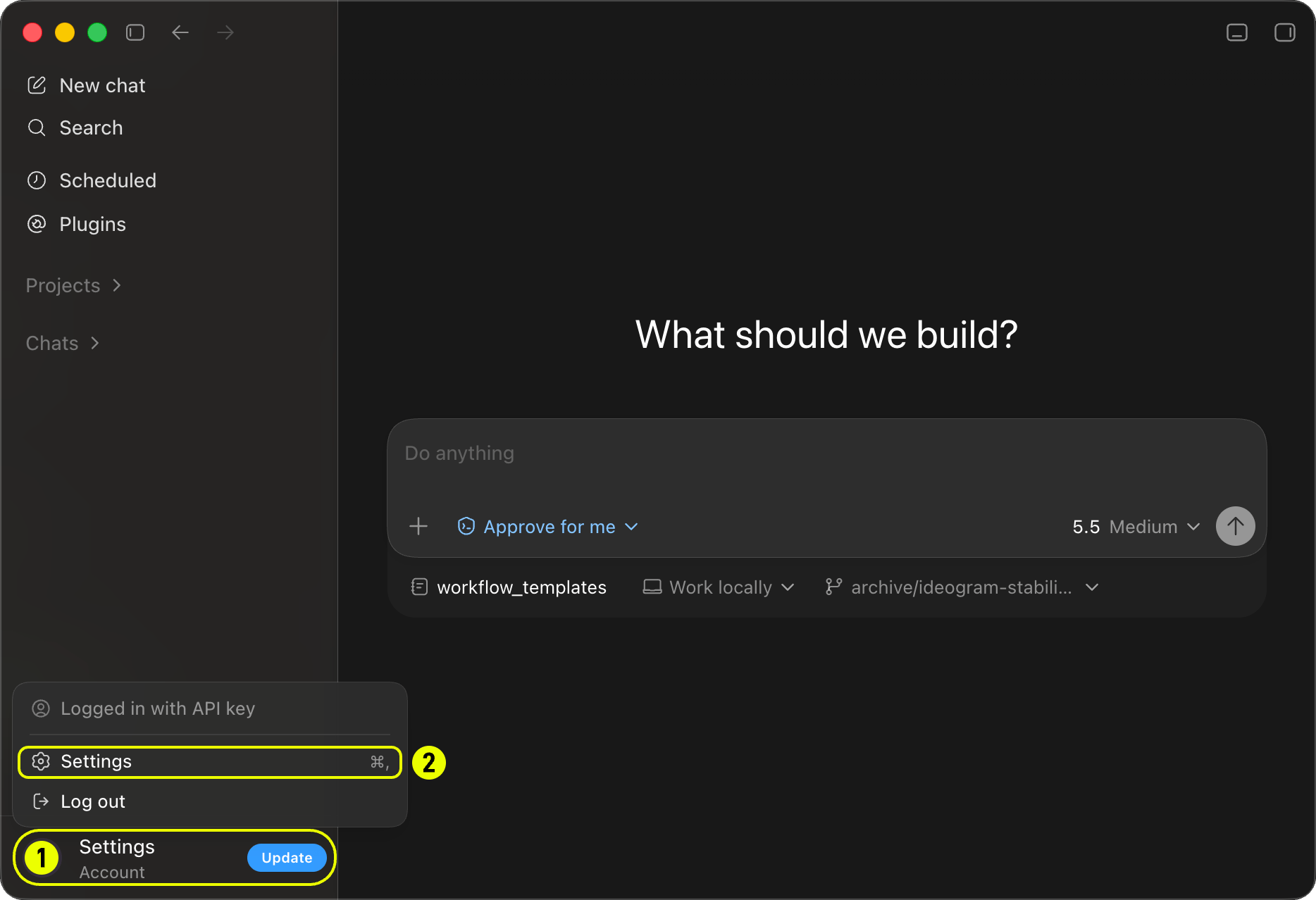
1. Click **Settings** (labeled **1**) under *Logged in with API key*.
2. Click **Settings** (labeled **2**) to open the full settings panel.
Ask in plain language ("generate an image of a cat astronaut", "find a Wan 2.2 video template"). Cursor invokes the MCP tools on your behalf.
[Codex](https://developers.openai.com/codex/cli) connects to Comfy Cloud over Streamable HTTP. Add the server in Settings, then sign in with OAuth.
1. Click **Settings** (labeled **1**) under *Logged in with API key*.
2. Click **Settings** (labeled **2**) to open the full settings panel.
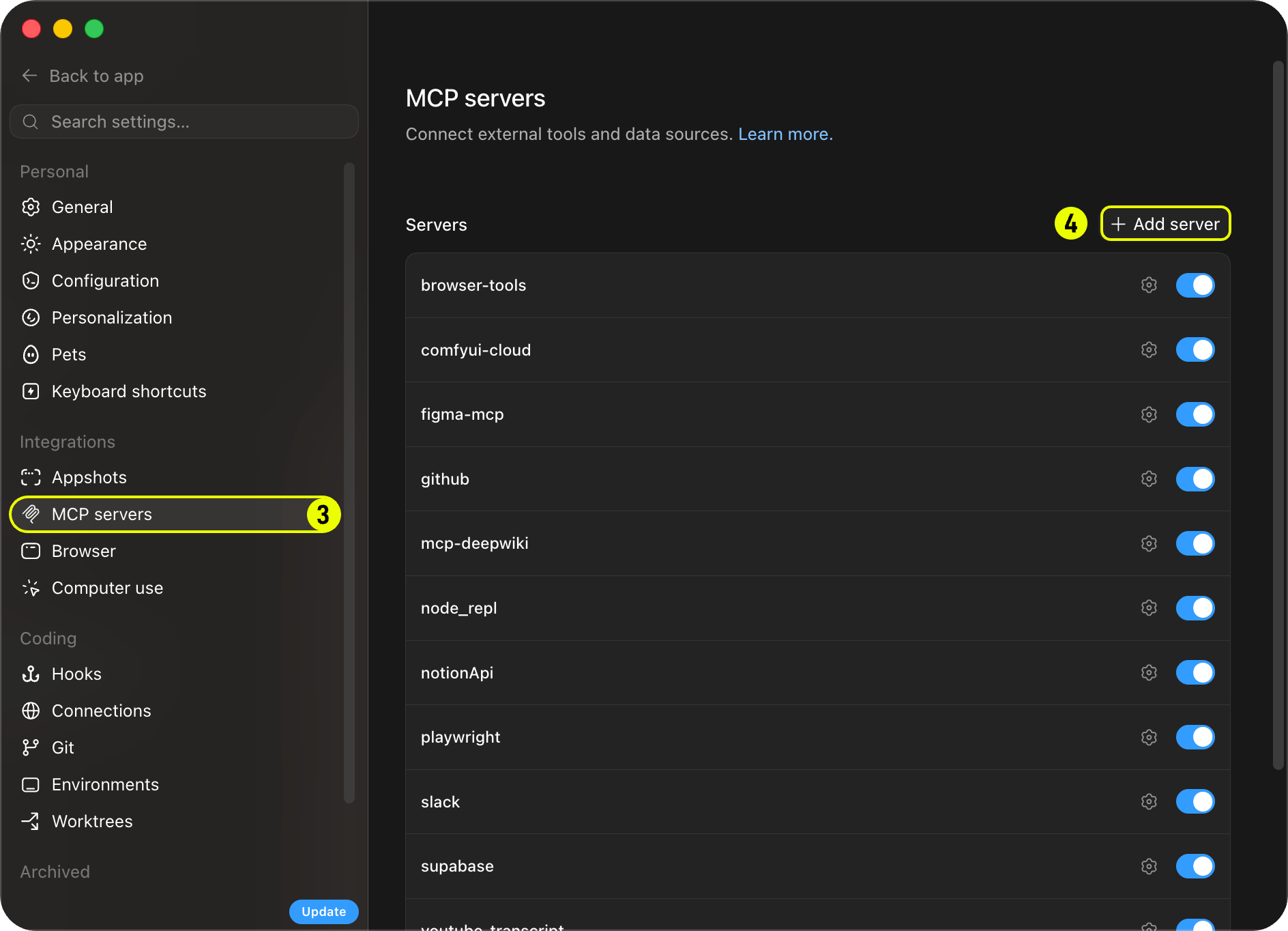
 1. Click **MCP servers** (labeled **3**) in the settings list.
2. Click **+ Add server** (labeled **4**) to add a new MCP server.
1. Click **MCP servers** (labeled **3**) in the settings list.
2. Click **+ Add server** (labeled **4**) to add a new MCP server.
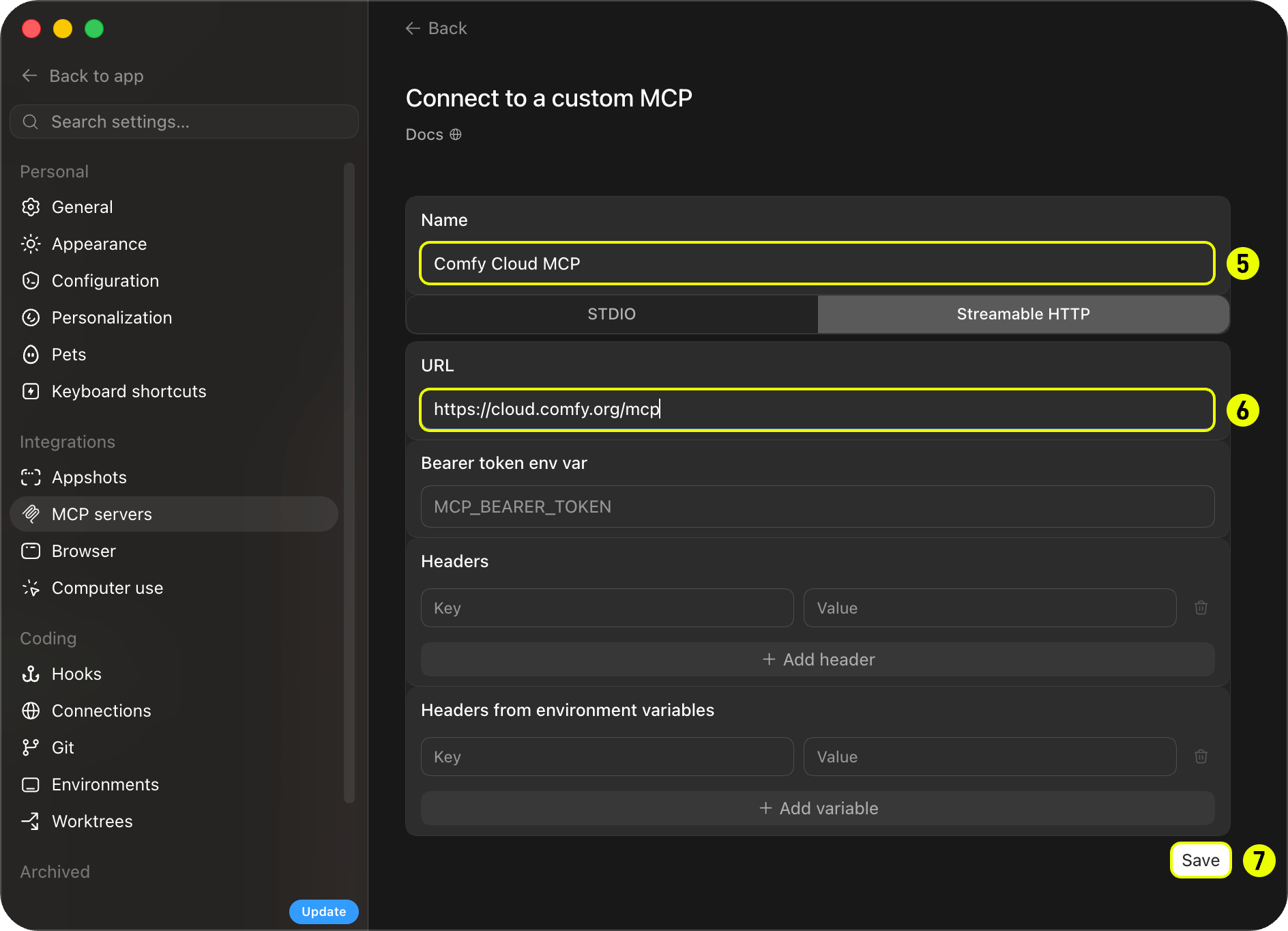
 1. Choose **Streamable HTTP** as the connection type.
2. Enter a name such as **Comfy Cloud MCP** in the **Name** field (labeled **5**).
3. Enter the URL `https://cloud.comfy.org/mcp` in the **URL** field (labeled **6**).
4. Click **Save** (labeled **7**).
1. Choose **Streamable HTTP** as the connection type.
2. Enter a name such as **Comfy Cloud MCP** in the **Name** field (labeled **5**).
3. Enter the URL `https://cloud.comfy.org/mcp` in the **URL** field (labeled **6**).
4. Click **Save** (labeled **7**).
 1. Click **Authenticate** (labeled **8**) on the saved server entry.
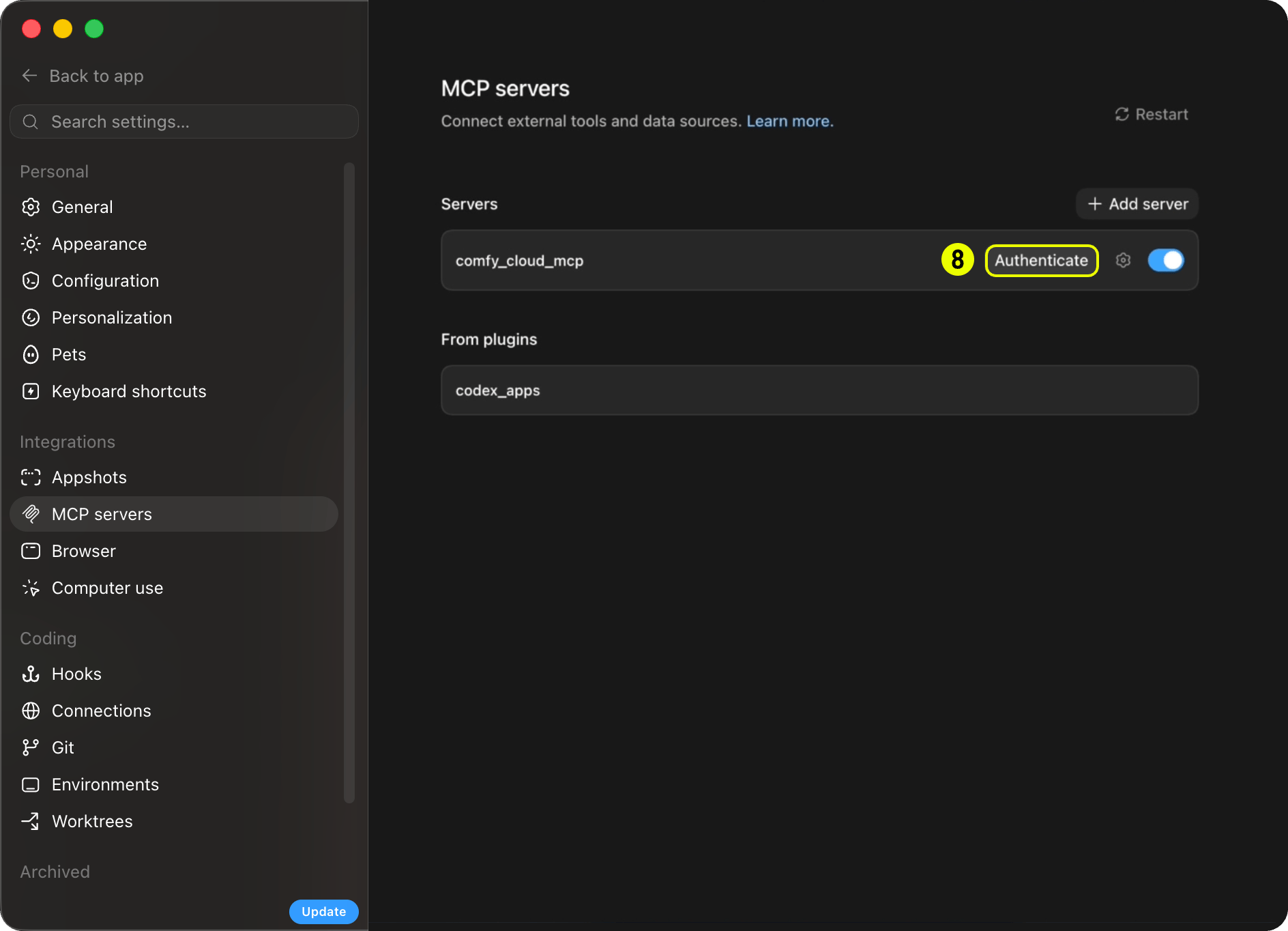 2. In the browser popup, choose your workspace and click **Continue** to finish signing in. You are connected.
Ask in plain language ("generate an image of a cat astronaut", "find a Wan 2.2 video template"). Codex invokes the MCP tools on your behalf.
Register and sign in from the terminal:
```bash theme={null}
codex mcp add comfy-cloud --url https://cloud.comfy.org/mcp
codex mcp login comfy-cloud
```
This writes an entry to `~/.codex/config.toml` (or `.codex/config.toml` in a trusted project).
When no browser is available, add the server with a header pulled from an environment variable. Create a key at [platform.comfy.org/profile/api-keys](https://platform.comfy.org/profile/api-keys) (starts with `comfyui-`), then add to `~/.codex/config.toml`:
```toml theme={null}
[mcp_servers.comfy-cloud]
url = "https://cloud.comfy.org/mcp"
env_http_headers = { "X-API-Key" = "COMFY_API_KEY" }
```
Set `COMFY_API_KEY` in your shell or system environment. Do not commit the key to version control.
Any MCP client that supports **remote HTTP** transport can connect to Comfy Cloud. The server URL is always `https://cloud.comfy.org/mcp`.
Add a remote MCP entry pointing at `https://cloud.comfy.org/mcp`. Most clients use a JSON config with a `url` field:
```json theme={null}
{
"mcpServers": {
"comfy-cloud": {
"url": "https://cloud.comfy.org/mcp"
}
}
}
```
**Windsurf** uses `serverUrl` instead of `url`. **Amp** uses the same `mcpServers` shape in **Settings → MCP Servers** or `~/.config/amp/settings.json`.
If your client supports MCP OAuth, sign in through the browser when prompted. Otherwise, add an API key header (see below).
Restart your client. You should see Comfy Cloud tools (`search_templates`, `submit_workflow`, `get_output`, and others) registered under the **comfy-cloud** server.
**Headless / CI (API key):** when OAuth is not available, create a key at [platform.comfy.org/profile/api-keys](https://platform.comfy.org/profile/api-keys) and pass it as the `X-API-Key` header:
```json theme={null}
{
"mcpServers": {
"comfy-cloud": {
"url": "https://cloud.comfy.org/mcp",
"headers": {
"X-API-Key": "comfyui-…"
}
}
}
}
```
For Claude Code from the terminal:
```bash theme={null}
claude mcp add --transport http comfy-cloud https://cloud.comfy.org/mcp -H "X-API-Key: comfyui-…"
```
Prefer `${env:COMFY_API_KEY}` or your client's secret interpolation instead of hard-coding keys in config files you commit to git.
## What your agent can do
You do not call MCP tools yourself. Your agent picks the right tool based on what you ask for. Slash commands and prompts (below) are shortcuts that steer the agent toward common tasks, but plain language works too ("generate an image of a cat astronaut", "upscale this photo", "find a Wan 2.2 video template").
Typical flow:
1. **Discover** what is available (`search_templates`, `search_models`, `search_nodes`, or `cql` for graph-style questions).
2. **Run** a generation: `run_template` for a matching pre-built template, `submit_workflow` for a custom workflow (with `upload_file` when an input image is needed), or `partner_generate` for partner models like Flux, Grok, Gemini, OpenAI, Ideogram, and Seedance.
3. **Wait and retrieve** outputs (`wait_for_job`, then `get_output` returns a download command your agent runs in your shell).
The server prefers matching [pre-built templates](https://comfy.org/workflows) before building a workflow from scratch, which tends to produce better results faster.
## MCP tools
These are the tools your agent has access to once connected. Names match what appears in MCP client logs and debugging.
### Discovery
| Tool | Description |
| --------------------- | -------------------------------------------------------------------------------------------------------------------------------------------------------------------------------------------------------------------------------- |
| `search_templates` | Search pre-built workflow templates from [comfy.org](https://comfy.org/workflows) by text, tag, media type, or model |
| `get_template` | Fetch a template's full workflow JSON for inspection or hand-editing |
| `get_template_schema` | See which of a template's parameters can be overridden at run time |
| `search_models` | Search the model catalog by text, type, base model, or source |
| `search_nodes` | Search available nodes by text, category, or input/output types. Also surfaces **subgraph blueprints** (pre-wired node groups like Text to Image or Remove Background) |
| `get_node` | Get the complete input spec for specific nodes, including full option lists |
| `cql` | Run a [CQL](https://github.com/Comfy-Org/cql) graph query for structural questions (for example, which nodes produce images, or paths between node types). Use `search_nodes` when you need full input specs for a specific node |
| `get_prompting_guide` | Prompt style and recommended settings (steps, cfg, sampler, resolution) per model family |
### Generation
| Tool | Description |
| ------------------ | ---------------------------------------------------------------------------------------------------------------- |
| `run_template` | Run a pre-built template by name, with optional parameter overrides — the preferred path when a template matches |
| `submit_workflow` | Submit a ComfyUI API-format workflow for execution on Comfy Cloud |
| `partner_generate` | Generate with partner-API models (Flux/BFL, Grok, Gemini, OpenAI, Ideogram, Seedream/Seedance, and more) |
| `upload_file` | Upload an input image or file for use in workflows (for example, with LoadImage) |
| `apply_slots` | Apply parameter overrides to a workflow's interior values and return the modified workflow |
### Jobs and batches
| Tool | Description |
| ------------------------------------------------------------------------ | -------------------------------------------------------------------------------------------------------------- |
| `get_job_status` | Poll execution status of a submitted workflow |
| `wait_for_job` | Wait until a job finishes instead of polling repeatedly |
| `get_output` | Retrieve output images, videos, or audio from a completed workflow |
| `use_previous_output` | Chain workflows by reusing output from one run as input to another |
| `cancel_job` | Cancel a pending or running job |
| `get_queue` | Check how many jobs are running and pending |
| `submit_batch`, `get_batch_status`, `get_batch_output`, `wait_for_batch` | Submit many generations in one call and collect them together later — the batch ID stays valid across sessions |
### Saved workflows
| Tool | Description |
| ---------------------- | --------------------------------------------------------------------------------------------------------------- |
| `list_saved_workflows` | Browse your saved workflows from Comfy Cloud |
| `get_saved_workflow` | Inspect a saved workflow's nodes, inputs, and customizable settings |
| `save_workflow` | Save a workflow to your Comfy Cloud account |
| `update_workflow` | Update an existing workflow in place as a new version (earlier versions stay recoverable) |
| `run_saved_workflow` | Run a saved workflow by filename — the server converts it from editor format to executable format automatically |
### Sharing workflows
| Tool | Description |
| ------------------------ | --------------------------------------------------------------------------------------------- |
| `share_workflow` | Publish a saved workflow and return a `?share=` URL anyone can open |
| `import_shared_workflow` | Resolve a share URL or bare share ID into workflow JSON, optionally saving it to your account |
**Hub URL share IDs:** the trailing hyphen-delimited hex token in a `comfy.org/workflows/-` hub URL is the share ID. For example, `comfy.org/workflows/topaz-starlight-upscale-1c77e82713b7` has share ID `1c77e82713b7`. Pass that token to `import_shared_workflow` as `share_id`. The `share_url` parameter only accepts `?share=` query URLs like `https://cloud.comfy.org/?share=...`, not hub page URLs.
### Apps and links
| Tool | Description |
| ------------------------- | ----------------------------------------------------------------------------------------------------------------- |
| `create_app` | Turn a saved workflow into an App Mode app — a simplified "run this workflow" view with chosen inputs and outputs |
| `get_app_mode_url` | Get the stable link that opens a workflow as a runnable app |
| `get_workflow_canvas_url` | Get a link that opens a workflow directly on the Comfy Cloud canvas, ready to view, edit, or run |
### Account and session
| Tool | Description |
| ------------------------ | ----------------------------------------------------------------------------------------------------------------------------------------------------------------------------------------- |
| `get_billing_status` | Check your credit balance, subscription tier, and billing link |
| `get_server_info` | Confirm which server the agent reached: environment, host, version, and auth state |
| `submit_feedback` | Get the beta feedback survey link |
| `report_session_summary` | Share an anonymized session summary with the Comfy team — **only with your explicit consent**; the agent must ask first, and no prompts, file paths, or personal information are included |
## Credits and spending
Discovery is free: `search_templates`, `search_models`, and `search_nodes` work with just a [Comfy account](https://cloud.comfy.org). Running generations consumes Comfy Cloud credits and requires a subscription or credit balance.
Tools that spend real money are **spend-gated**. When a generation uses a paid partner model (`partner_generate`) or a workflow/template containing paid API nodes (`run_template`, `run_saved_workflow`, `submit_batch`), the server blocks execution until your agent confirms you agreed to spend credits — so expect the agent to check with you before those runs. Free, local-only workflows never prompt.
You can ask your agent about your balance at any time ("how many credits do I have?") — it answers via `get_billing_status`.
## Outputs and downloads
The MCP server runs in the cloud and **never writes files to your machine**. When a generation completes, your agent calls `get_output`, which returns:
1. A **temporary signed download URL** (valid for a short window).
2. A ready-to-run **shell command** (`curl` on macOS and Linux, `curl.exe` on Windows).
Your agent should run that command in your shell. The command includes the destination path and filename.
Run the returned command **verbatim**. Do not re-encode or edit the signed URL. The signature lives in the query string and breaks if the URL is modified.
If your MCP client cannot run shell commands (some GUI-only setups), copy the command and run it yourself in a terminal.
## Related resources
| Resource | What it's for |
| ---------------------------------------------------------- | ------------------------------------------------------------------------------------------------------------------------------------------------------------------------------------------------------- |
| [Comfy Skills](https://github.com/Comfy-Org/comfy-skills/) | Claude Code plugin marketplace and community skill library. The **comfy-cloud** plugin used above is distributed here; browse or contribute additional skills for Comfy workflows. |
| [Comfy CLI](/agent-tools/comfy-cli) | Command-line tool for local ComfyUI install/launch and for calling hosted partner nodes from scripts or CI (`comfy generate`, in beta). Complements MCP when you need terminal or automation workflows. |
| [Share a workflow on Comfy Cloud](/cloud/share-workflow) | Share workflows from the Comfy Cloud UI (the MCP `share_workflow` tool does this from an agent session). |
## Feedback
Comfy Cloud MCP is in public beta. Please try it out and tell us what works and what doesn't:
* **[Feedback survey](https://links.comfy.org/cloudmcpbeta)**: report bugs, request features, or share general impressions.
* **Discord**: [#comfy-mcp-and-cli](https://discord.gg/xWJn6nhE3R) on the Comfy Discord for questions and discussion.
## Known limitations
Comfy Cloud MCP is an early release. These limitations are known and being worked on:
**Workflows**
* **Editor-to-executable conversion has rough edges.** Saved workflows run by filename via `run_saved_workflow` (the server converts them automatically), but some node configurations still convert imperfectly.
* **Assets generated via `submit_workflow` may not embed workflow metadata.** They might not reopen the originating workflow when opened in ComfyUI.
* **Workflow building depends on agent accuracy.** Complex multi-node workflows may need a retry or refinement.
**File handling**
* **Outputs require a shell download step.** See [Outputs and downloads](#outputs-and-downloads).
* **Upload size limits** may apply depending on your MCP client. Some clients impose their own limits on file uploads.
**Authentication**
* **OAuth or API key.** Claude Code and Claude Desktop use a one-time browser OAuth flow. **Cursor** requires a Comfy Cloud API key in your MCP config (no OAuth). Other headless clients can pass a Comfy Cloud API key via the `X-API-Key` header instead. A device-code OAuth flow for clients that cannot open a browser is planned.
## FAQ
Any MCP-compatible client that supports remote HTTP transport can connect to `https://cloud.comfy.org/mcp`. We document first-class setup for **Claude Code**, **Claude Desktop**, **Cursor**, and **Codex**. **Windsurf**, **Amp**, **OpenClaw**, and other agents follow the same URL with OAuth or an API key. See [Install Comfy Cloud MCP](#install-comfy-cloud-mcp).
Not for interactive clients that support OAuth (Claude Code, Claude Desktop, Codex, and others). **Cursor** requires a Comfy Cloud API key in your MCP config. An API key is also needed for other headless or CI setups with no browser. See the **Cursor** tab or **Other clients** tab under [Install Comfy Cloud MCP](#install-comfy-cloud-mcp).
Paid generations are spend-gated: when a run would consume Comfy Cloud credits (a partner model, or a workflow/template with paid API nodes), the server requires your explicit agreement before executing. See [Credits and spending](#credits-and-spending).
No. Slash commands ship in the Claude Code plugin. Claude Desktop connects to the same MCP server (the tools work if you ask in plain language or use the prompt picker), but it does not support Claude Code plugins or slash commands.
There is no `/comfy` or `/cloud` command. Commands appear under one of two prefixes depending on how you connected:
* **Plugin (recommended):** `/comfy-cloud:generate-image`, `/comfy-cloud:generate-video`, … — type `/comfy-cloud:` to see them all.
* **Direct connection (no plugin):** `/mcp__comfy-cloud__generate-image`, … — type `/mcp__` to see them.
Either way you can also just ask in plain language ("generate an image of …"). The MCP tools are model-invoked and do not require a slash command.
In Claude Code, run `/mcp`, select **comfy-cloud**, and choose **Authenticate**. In Claude Desktop, reopen the connector from **Customize → Connectors** and trigger sign-in.
Comfy Cloud MCP is our hosted offering, but local agent workflows have existed since ComfyUI was open-sourced. See [What about local ComfyUI?](/agent-tools#what-about-local-comfyui) on the Agent Tools overview for why Cloud shipped first, community MCP servers you can use today, and [Comfy CLI](/agent-tools/comfy-cli) as another option.
2. In the browser popup, choose your workspace and click **Continue** to finish signing in. You are connected.
Ask in plain language ("generate an image of a cat astronaut", "find a Wan 2.2 video template"). Codex invokes the MCP tools on your behalf.
Register and sign in from the terminal:
```bash theme={null}
codex mcp add comfy-cloud --url https://cloud.comfy.org/mcp
codex mcp login comfy-cloud
```
This writes an entry to `~/.codex/config.toml` (or `.codex/config.toml` in a trusted project).
When no browser is available, add the server with a header pulled from an environment variable. Create a key at [platform.comfy.org/profile/api-keys](https://platform.comfy.org/profile/api-keys) (starts with `comfyui-`), then add to `~/.codex/config.toml`:
```toml theme={null}
[mcp_servers.comfy-cloud]
url = "https://cloud.comfy.org/mcp"
env_http_headers = { "X-API-Key" = "COMFY_API_KEY" }
```
Set `COMFY_API_KEY` in your shell or system environment. Do not commit the key to version control.
Any MCP client that supports **remote HTTP** transport can connect to Comfy Cloud. The server URL is always `https://cloud.comfy.org/mcp`.
Add a remote MCP entry pointing at `https://cloud.comfy.org/mcp`. Most clients use a JSON config with a `url` field:
```json theme={null}
{
"mcpServers": {
"comfy-cloud": {
"url": "https://cloud.comfy.org/mcp"
}
}
}
```
**Windsurf** uses `serverUrl` instead of `url`. **Amp** uses the same `mcpServers` shape in **Settings → MCP Servers** or `~/.config/amp/settings.json`.
If your client supports MCP OAuth, sign in through the browser when prompted. Otherwise, add an API key header (see below).
Restart your client. You should see Comfy Cloud tools (`search_templates`, `submit_workflow`, `get_output`, and others) registered under the **comfy-cloud** server.
**Headless / CI (API key):** when OAuth is not available, create a key at [platform.comfy.org/profile/api-keys](https://platform.comfy.org/profile/api-keys) and pass it as the `X-API-Key` header:
```json theme={null}
{
"mcpServers": {
"comfy-cloud": {
"url": "https://cloud.comfy.org/mcp",
"headers": {
"X-API-Key": "comfyui-…"
}
}
}
}
```
For Claude Code from the terminal:
```bash theme={null}
claude mcp add --transport http comfy-cloud https://cloud.comfy.org/mcp -H "X-API-Key: comfyui-…"
```
Prefer `${env:COMFY_API_KEY}` or your client's secret interpolation instead of hard-coding keys in config files you commit to git.
## What your agent can do
You do not call MCP tools yourself. Your agent picks the right tool based on what you ask for. Slash commands and prompts (below) are shortcuts that steer the agent toward common tasks, but plain language works too ("generate an image of a cat astronaut", "upscale this photo", "find a Wan 2.2 video template").
Typical flow:
1. **Discover** what is available (`search_templates`, `search_models`, `search_nodes`, or `cql` for graph-style questions).
2. **Run** a generation: `run_template` for a matching pre-built template, `submit_workflow` for a custom workflow (with `upload_file` when an input image is needed), or `partner_generate` for partner models like Flux, Grok, Gemini, OpenAI, Ideogram, and Seedance.
3. **Wait and retrieve** outputs (`wait_for_job`, then `get_output` returns a download command your agent runs in your shell).
The server prefers matching [pre-built templates](https://comfy.org/workflows) before building a workflow from scratch, which tends to produce better results faster.
## MCP tools
These are the tools your agent has access to once connected. Names match what appears in MCP client logs and debugging.
### Discovery
| Tool | Description |
| --------------------- | -------------------------------------------------------------------------------------------------------------------------------------------------------------------------------------------------------------------------------- |
| `search_templates` | Search pre-built workflow templates from [comfy.org](https://comfy.org/workflows) by text, tag, media type, or model |
| `get_template` | Fetch a template's full workflow JSON for inspection or hand-editing |
| `get_template_schema` | See which of a template's parameters can be overridden at run time |
| `search_models` | Search the model catalog by text, type, base model, or source |
| `search_nodes` | Search available nodes by text, category, or input/output types. Also surfaces **subgraph blueprints** (pre-wired node groups like Text to Image or Remove Background) |
| `get_node` | Get the complete input spec for specific nodes, including full option lists |
| `cql` | Run a [CQL](https://github.com/Comfy-Org/cql) graph query for structural questions (for example, which nodes produce images, or paths between node types). Use `search_nodes` when you need full input specs for a specific node |
| `get_prompting_guide` | Prompt style and recommended settings (steps, cfg, sampler, resolution) per model family |
### Generation
| Tool | Description |
| ------------------ | ---------------------------------------------------------------------------------------------------------------- |
| `run_template` | Run a pre-built template by name, with optional parameter overrides — the preferred path when a template matches |
| `submit_workflow` | Submit a ComfyUI API-format workflow for execution on Comfy Cloud |
| `partner_generate` | Generate with partner-API models (Flux/BFL, Grok, Gemini, OpenAI, Ideogram, Seedream/Seedance, and more) |
| `upload_file` | Upload an input image or file for use in workflows (for example, with LoadImage) |
| `apply_slots` | Apply parameter overrides to a workflow's interior values and return the modified workflow |
### Jobs and batches
| Tool | Description |
| ------------------------------------------------------------------------ | -------------------------------------------------------------------------------------------------------------- |
| `get_job_status` | Poll execution status of a submitted workflow |
| `wait_for_job` | Wait until a job finishes instead of polling repeatedly |
| `get_output` | Retrieve output images, videos, or audio from a completed workflow |
| `use_previous_output` | Chain workflows by reusing output from one run as input to another |
| `cancel_job` | Cancel a pending or running job |
| `get_queue` | Check how many jobs are running and pending |
| `submit_batch`, `get_batch_status`, `get_batch_output`, `wait_for_batch` | Submit many generations in one call and collect them together later — the batch ID stays valid across sessions |
### Saved workflows
| Tool | Description |
| ---------------------- | --------------------------------------------------------------------------------------------------------------- |
| `list_saved_workflows` | Browse your saved workflows from Comfy Cloud |
| `get_saved_workflow` | Inspect a saved workflow's nodes, inputs, and customizable settings |
| `save_workflow` | Save a workflow to your Comfy Cloud account |
| `update_workflow` | Update an existing workflow in place as a new version (earlier versions stay recoverable) |
| `run_saved_workflow` | Run a saved workflow by filename — the server converts it from editor format to executable format automatically |
### Sharing workflows
| Tool | Description |
| ------------------------ | --------------------------------------------------------------------------------------------- |
| `share_workflow` | Publish a saved workflow and return a `?share=` URL anyone can open |
| `import_shared_workflow` | Resolve a share URL or bare share ID into workflow JSON, optionally saving it to your account |
**Hub URL share IDs:** the trailing hyphen-delimited hex token in a `comfy.org/workflows/-` hub URL is the share ID. For example, `comfy.org/workflows/topaz-starlight-upscale-1c77e82713b7` has share ID `1c77e82713b7`. Pass that token to `import_shared_workflow` as `share_id`. The `share_url` parameter only accepts `?share=` query URLs like `https://cloud.comfy.org/?share=...`, not hub page URLs.
### Apps and links
| Tool | Description |
| ------------------------- | ----------------------------------------------------------------------------------------------------------------- |
| `create_app` | Turn a saved workflow into an App Mode app — a simplified "run this workflow" view with chosen inputs and outputs |
| `get_app_mode_url` | Get the stable link that opens a workflow as a runnable app |
| `get_workflow_canvas_url` | Get a link that opens a workflow directly on the Comfy Cloud canvas, ready to view, edit, or run |
### Account and session
| Tool | Description |
| ------------------------ | ----------------------------------------------------------------------------------------------------------------------------------------------------------------------------------------- |
| `get_billing_status` | Check your credit balance, subscription tier, and billing link |
| `get_server_info` | Confirm which server the agent reached: environment, host, version, and auth state |
| `submit_feedback` | Get the beta feedback survey link |
| `report_session_summary` | Share an anonymized session summary with the Comfy team — **only with your explicit consent**; the agent must ask first, and no prompts, file paths, or personal information are included |
## Credits and spending
Discovery is free: `search_templates`, `search_models`, and `search_nodes` work with just a [Comfy account](https://cloud.comfy.org). Running generations consumes Comfy Cloud credits and requires a subscription or credit balance.
Tools that spend real money are **spend-gated**. When a generation uses a paid partner model (`partner_generate`) or a workflow/template containing paid API nodes (`run_template`, `run_saved_workflow`, `submit_batch`), the server blocks execution until your agent confirms you agreed to spend credits — so expect the agent to check with you before those runs. Free, local-only workflows never prompt.
You can ask your agent about your balance at any time ("how many credits do I have?") — it answers via `get_billing_status`.
## Outputs and downloads
The MCP server runs in the cloud and **never writes files to your machine**. When a generation completes, your agent calls `get_output`, which returns:
1. A **temporary signed download URL** (valid for a short window).
2. A ready-to-run **shell command** (`curl` on macOS and Linux, `curl.exe` on Windows).
Your agent should run that command in your shell. The command includes the destination path and filename.
Run the returned command **verbatim**. Do not re-encode or edit the signed URL. The signature lives in the query string and breaks if the URL is modified.
If your MCP client cannot run shell commands (some GUI-only setups), copy the command and run it yourself in a terminal.
## Related resources
| Resource | What it's for |
| ---------------------------------------------------------- | ------------------------------------------------------------------------------------------------------------------------------------------------------------------------------------------------------- |
| [Comfy Skills](https://github.com/Comfy-Org/comfy-skills/) | Claude Code plugin marketplace and community skill library. The **comfy-cloud** plugin used above is distributed here; browse or contribute additional skills for Comfy workflows. |
| [Comfy CLI](/agent-tools/comfy-cli) | Command-line tool for local ComfyUI install/launch and for calling hosted partner nodes from scripts or CI (`comfy generate`, in beta). Complements MCP when you need terminal or automation workflows. |
| [Share a workflow on Comfy Cloud](/cloud/share-workflow) | Share workflows from the Comfy Cloud UI (the MCP `share_workflow` tool does this from an agent session). |
## Feedback
Comfy Cloud MCP is in public beta. Please try it out and tell us what works and what doesn't:
* **[Feedback survey](https://links.comfy.org/cloudmcpbeta)**: report bugs, request features, or share general impressions.
* **Discord**: [#comfy-mcp-and-cli](https://discord.gg/xWJn6nhE3R) on the Comfy Discord for questions and discussion.
## Known limitations
Comfy Cloud MCP is an early release. These limitations are known and being worked on:
**Workflows**
* **Editor-to-executable conversion has rough edges.** Saved workflows run by filename via `run_saved_workflow` (the server converts them automatically), but some node configurations still convert imperfectly.
* **Assets generated via `submit_workflow` may not embed workflow metadata.** They might not reopen the originating workflow when opened in ComfyUI.
* **Workflow building depends on agent accuracy.** Complex multi-node workflows may need a retry or refinement.
**File handling**
* **Outputs require a shell download step.** See [Outputs and downloads](#outputs-and-downloads).
* **Upload size limits** may apply depending on your MCP client. Some clients impose their own limits on file uploads.
**Authentication**
* **OAuth or API key.** Claude Code and Claude Desktop use a one-time browser OAuth flow. **Cursor** requires a Comfy Cloud API key in your MCP config (no OAuth). Other headless clients can pass a Comfy Cloud API key via the `X-API-Key` header instead. A device-code OAuth flow for clients that cannot open a browser is planned.
## FAQ
Any MCP-compatible client that supports remote HTTP transport can connect to `https://cloud.comfy.org/mcp`. We document first-class setup for **Claude Code**, **Claude Desktop**, **Cursor**, and **Codex**. **Windsurf**, **Amp**, **OpenClaw**, and other agents follow the same URL with OAuth or an API key. See [Install Comfy Cloud MCP](#install-comfy-cloud-mcp).
Not for interactive clients that support OAuth (Claude Code, Claude Desktop, Codex, and others). **Cursor** requires a Comfy Cloud API key in your MCP config. An API key is also needed for other headless or CI setups with no browser. See the **Cursor** tab or **Other clients** tab under [Install Comfy Cloud MCP](#install-comfy-cloud-mcp).
Paid generations are spend-gated: when a run would consume Comfy Cloud credits (a partner model, or a workflow/template with paid API nodes), the server requires your explicit agreement before executing. See [Credits and spending](#credits-and-spending).
No. Slash commands ship in the Claude Code plugin. Claude Desktop connects to the same MCP server (the tools work if you ask in plain language or use the prompt picker), but it does not support Claude Code plugins or slash commands.
There is no `/comfy` or `/cloud` command. Commands appear under one of two prefixes depending on how you connected:
* **Plugin (recommended):** `/comfy-cloud:generate-image`, `/comfy-cloud:generate-video`, … — type `/comfy-cloud:` to see them all.
* **Direct connection (no plugin):** `/mcp__comfy-cloud__generate-image`, … — type `/mcp__` to see them.
Either way you can also just ask in plain language ("generate an image of …"). The MCP tools are model-invoked and do not require a slash command.
In Claude Code, run `/mcp`, select **comfy-cloud**, and choose **Authenticate**. In Claude Desktop, reopen the connector from **Customize → Connectors** and trigger sign-in.
Comfy Cloud MCP is our hosted offering, but local agent workflows have existed since ComfyUI was open-sourced. See [What about local ComfyUI?](/agent-tools#what-about-local-comfyui) on the Agent Tools overview for why Cloud shipped first, community MCP servers you can use today, and [Comfy CLI](/agent-tools/comfy-cli) as another option.