> ## Documentation Index
> Fetch the complete documentation index at: https://dripart-feat-openapi-i18n.mintlify.site/llms.txt
> Use this file to discover all available pages before exploring further.

# 支払い履歴の表示

> 過去の支払いと請求書にアクセスして確認する

アカウントダッシュボードを通じて、すべての支払い履歴を表示し、請求書をダウンロードできます。

## 支払い履歴へのアクセス

1. ComfyUI アカウントにログインし、プロフィールメニューを開きます
2. **ユーザー設定**をクリックします
3. 設定パネルで**クレジット**タブを選択します
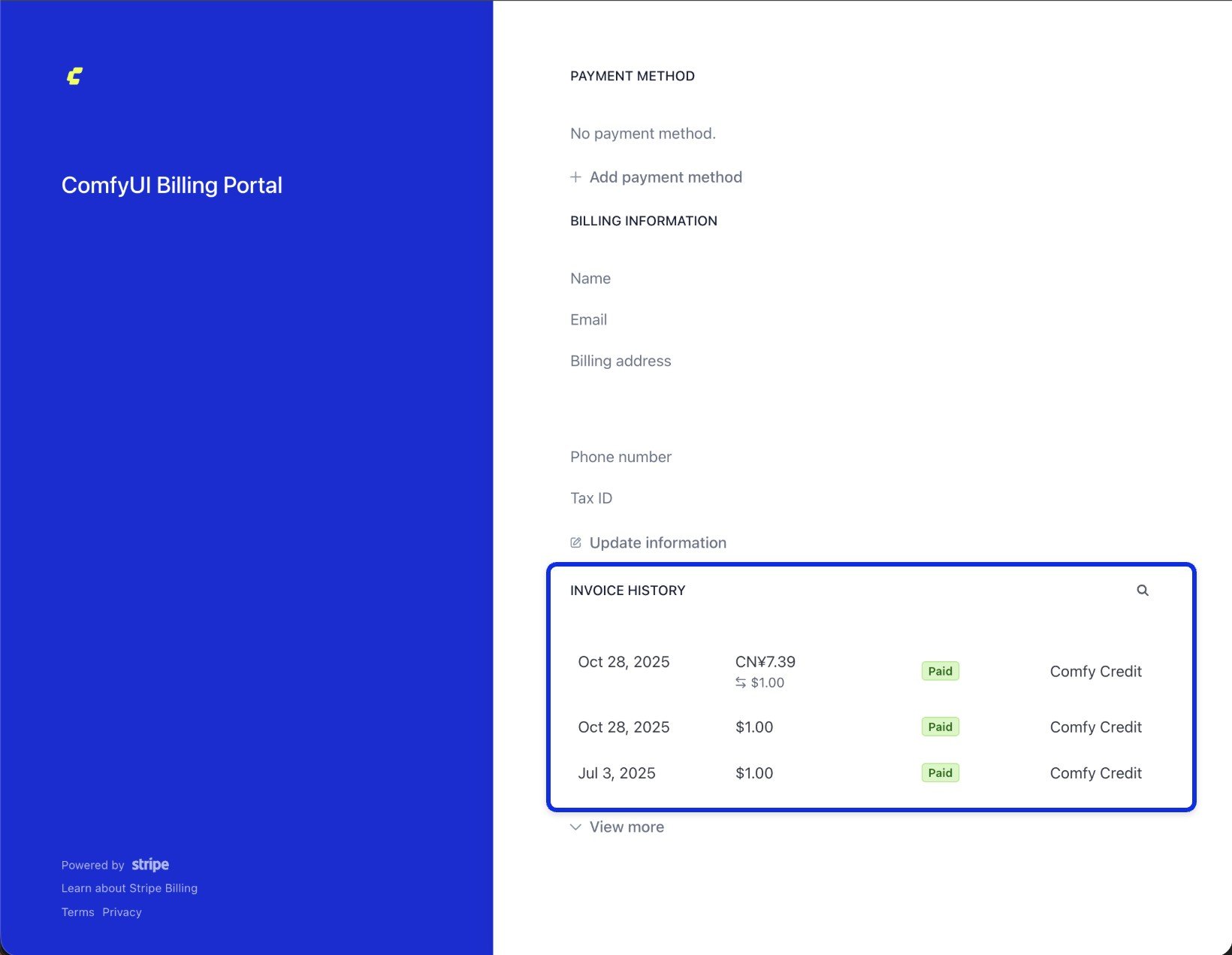
4. **請求書履歴**をクリックして Stripe 請求ポータルを開き、支払い履歴を表示します

### 視覚的な手順
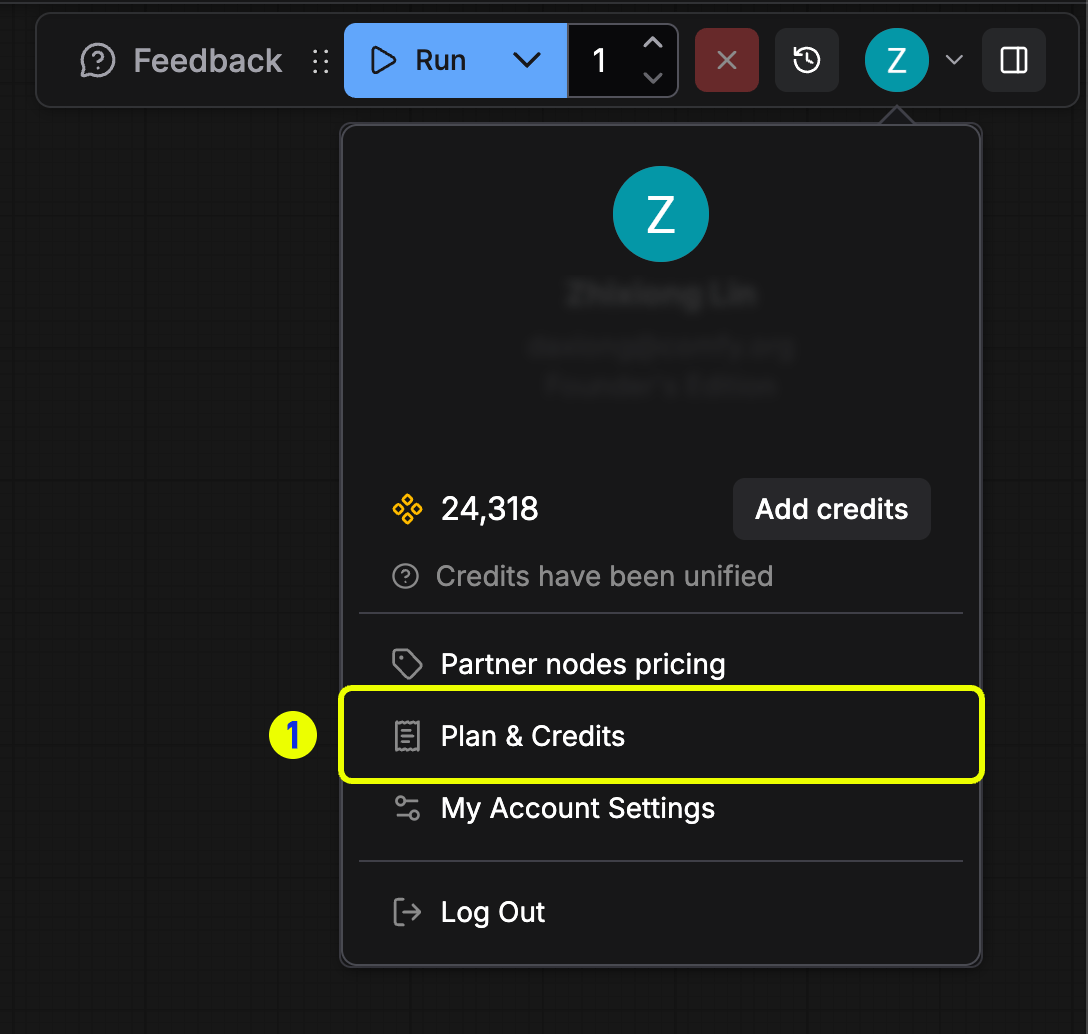
<img src="https://mintcdn.com/dripart-feat-openapi-i18n/r4ofTdiq3RgdmlpY/images/support/payment/billing-1-account.png?fit=max&auto=format&n=r4ofTdiq3RgdmlpY&q=85&s=5af4dff12eef4a2cea50047020dca6a2" alt="ユーザー設定オプションが強調表示されたプロフィールメニュー" width="1088" height="1034" data-path="images/support/payment/billing-1-account.png" />

*請求管理のためにプロフィールメニューを開き、**ユーザー設定**を選択します。*
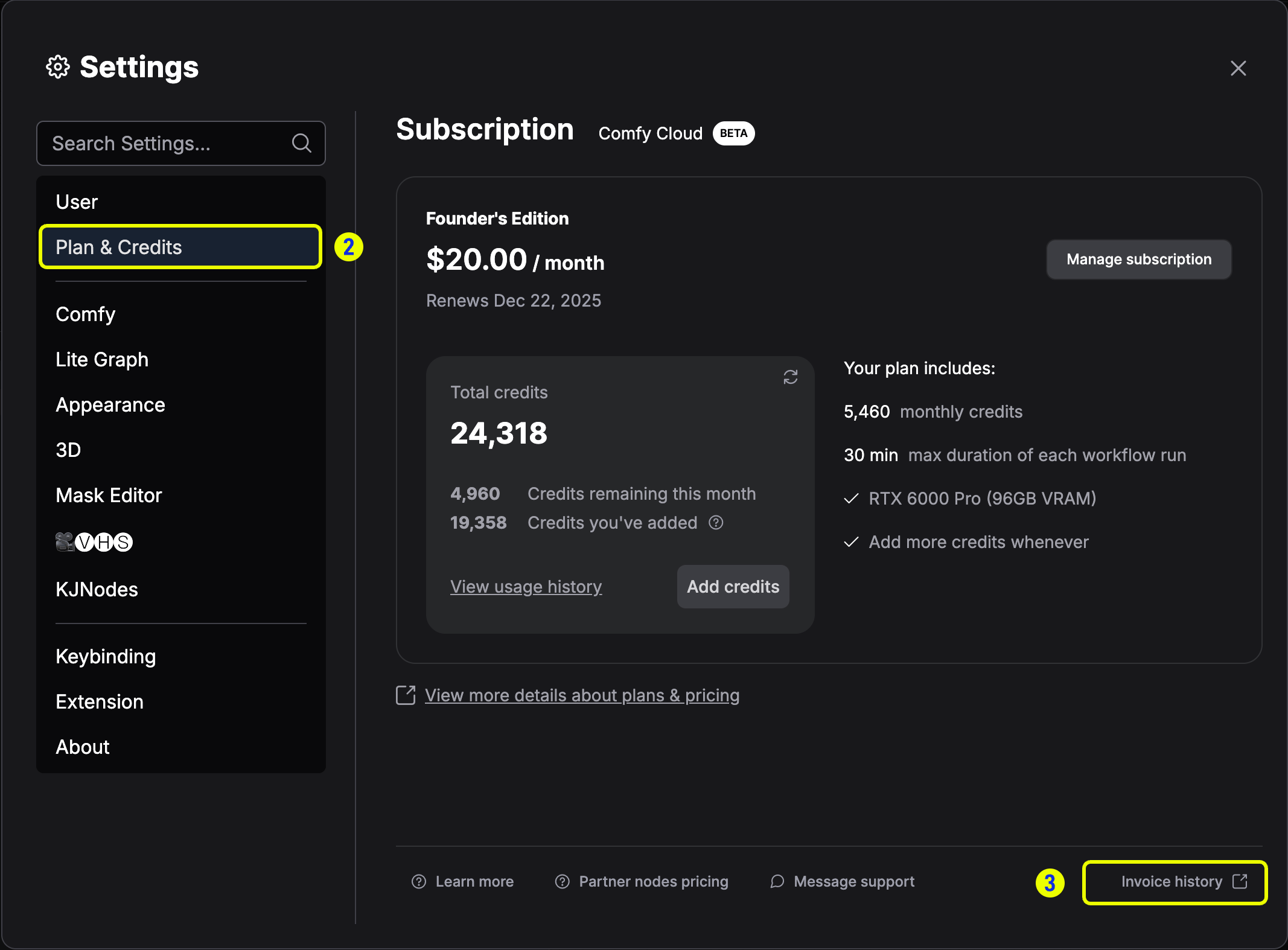
<img src="https://mintcdn.com/dripart-feat-openapi-i18n/r4ofTdiq3RgdmlpY/images/support/payment/billing-2-credits.png?fit=max&auto=format&n=r4ofTdiq3RgdmlpY&q=85&s=631ad69a8840ac27052a6070f362293c" alt="請求書履歴ボタンが強調表示された設定内のクレジットタブ" width="2134" height="1574" data-path="images/support/payment/billing-2-credits.png" />

***クレジット**タブに移動し、**請求書履歴**を選択します。*

<img src="https://mintcdn.com/dripart-feat-openapi-i18n/r4ofTdiq3RgdmlpY/images/support/payment/billing-4-history.jpg?fit=max&auto=format&n=r4ofTdiq3RgdmlpY&q=85&s=f31d419bf2674af1b4ca67dd3c708b05" alt="請求書履歴テーブルを表示する Stripe 請求ポータル" width="1640" height="1271" data-path="images/support/payment/billing-4-history.jpg" />

*Stripe 請求ポータルで請求書リストを確認します。*

## 請求書のダウンロード

Stripe ポータルで、請求書履歴リストの任意の項目を開いて詳細を表示し、PDF コピーをダウンロードします。
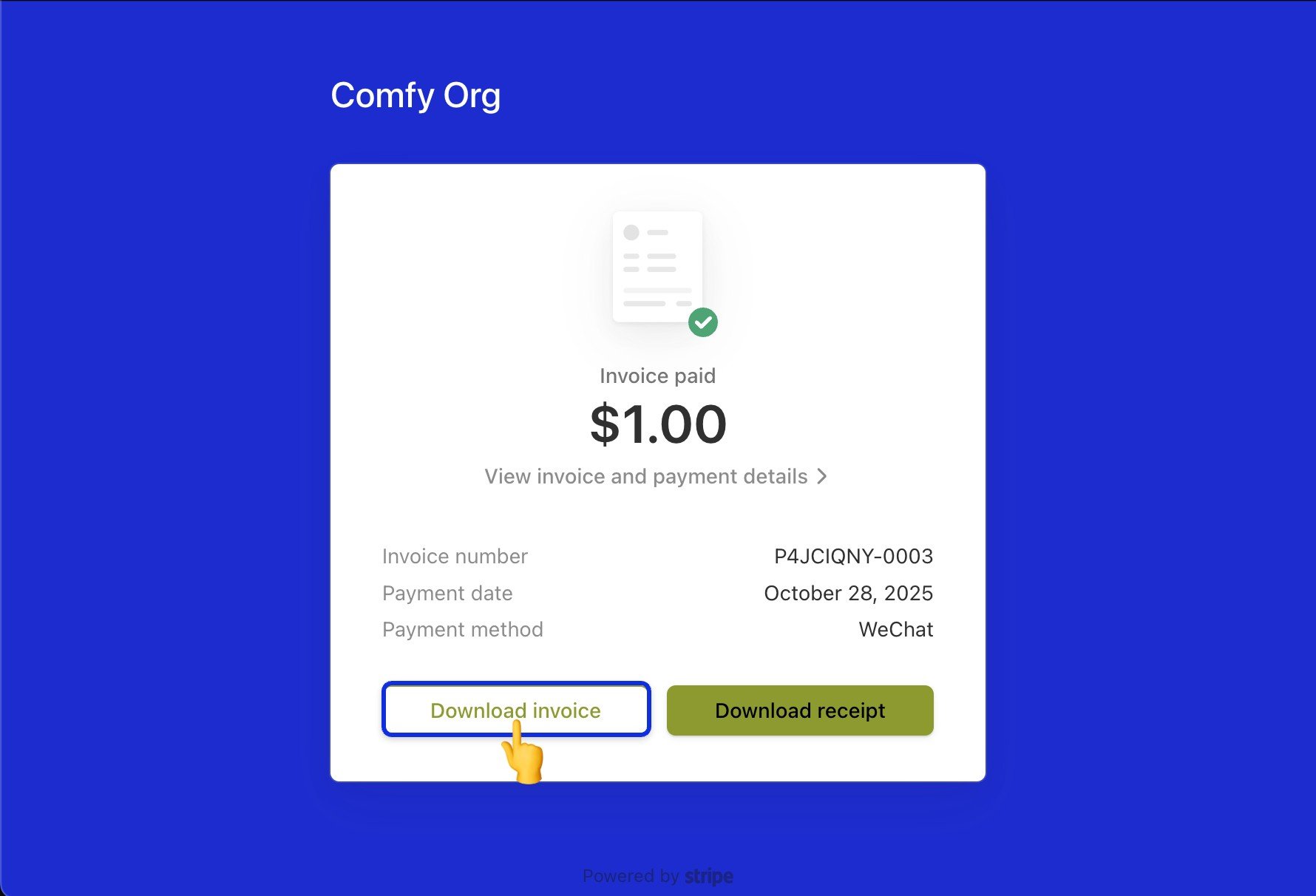
<img src="https://mintcdn.com/dripart-feat-openapi-i18n/r4ofTdiq3RgdmlpY/images/support/payment/billing-5-download-invoice.jpg?fit=max&auto=format&n=r4ofTdiq3RgdmlpY&q=85&s=b11490d3fa6570872b3fc9130f072143" alt="ダウンロードオプションが強調表示された請求書履歴の詳細" width="1780" height="1212" data-path="images/support/payment/billing-5-download-invoice.jpg" />

新しい請求書が生成される前に、請求先情報が正しいことを確認してください。[支払い情報の編集](/support/payment/editing-payment-information) からこれらを更新できます。