> ## Documentation Index
> Fetch the complete documentation index at: https://dripart-feat-openapi-i18n.mintlify.site/llms.txt
> Use this file to discover all available pages before exploring further.
# 결제 내역 보기
> 과거 결제 및 청구서에 액세스하고 검토하세요
계정 대시보드를 통해 전체 결제 내역을 확인하고 청구서를 다운로드할 수 있습니다.
## 결제 내역 접근하기
1. ComfyUI 계정에 로그인하고 프로필 메뉴를 열어주세요.
2. **사용자 설정**을 클릭하세요.
3. 설정 패널에서 **크레딧** 탭을 선택하세요.
4. **청구서 내역**을 클릭하면 Stripe 결제 포털이 열리며, 결제 내역을 확인하실 수 있습니다.
### 시각적 안내
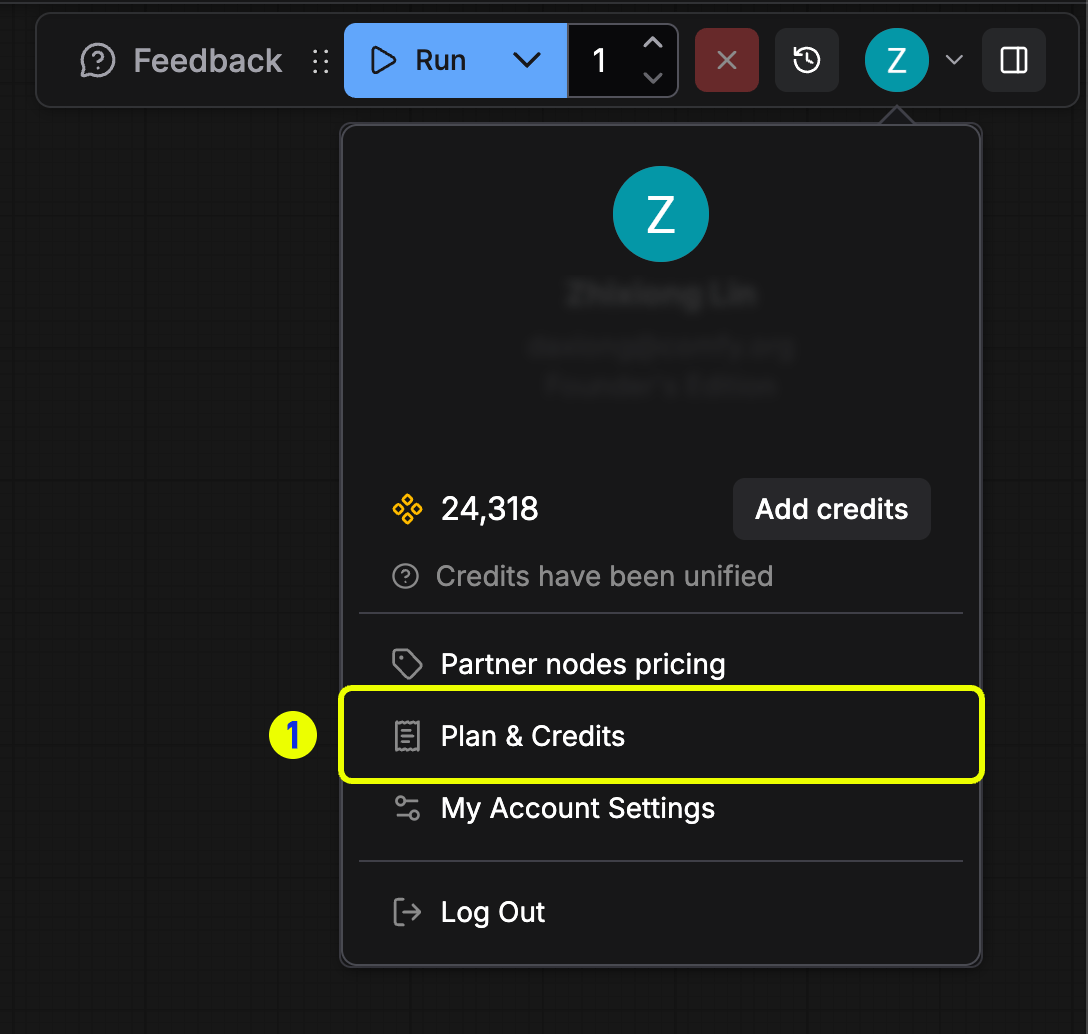 *프로필 메뉴를 열고 **사용자 설정**을 선택해 결제를 관리하세요.*
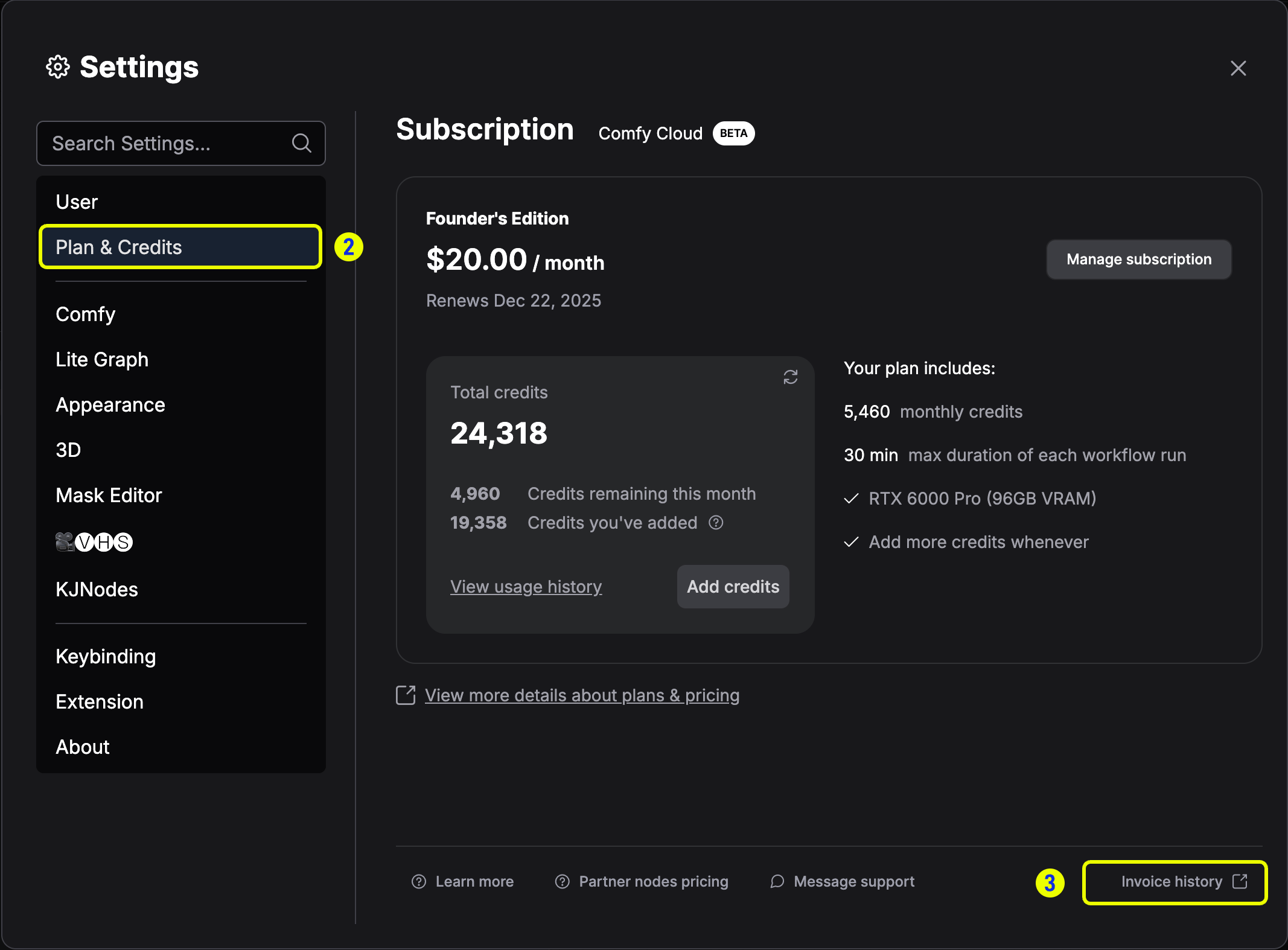 ***크레딧** 탭으로 이동해 **청구서 내역**을 선택하세요.*
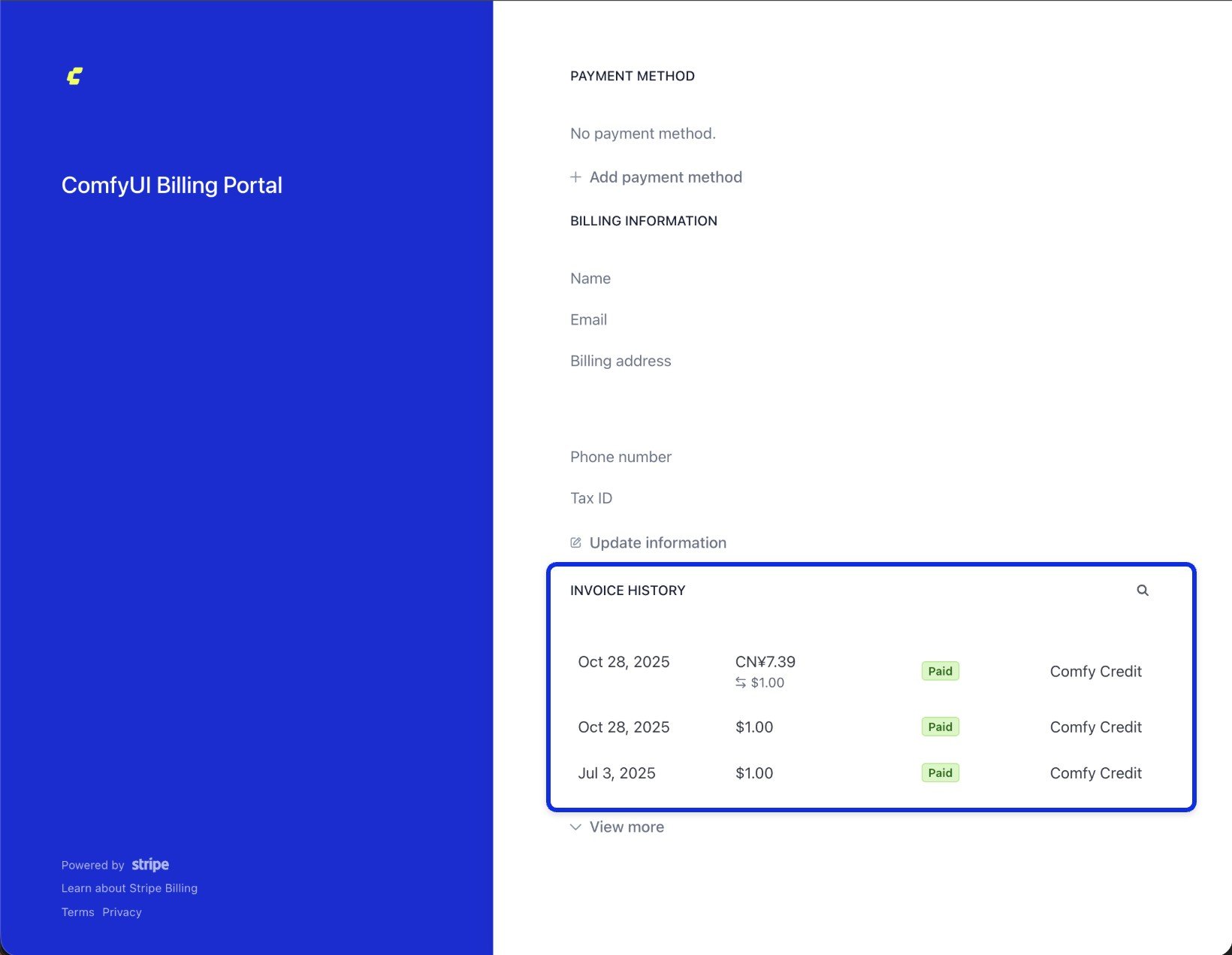 *Stripe 결제 포털에서 청구서 목록을 확인하세요.*
## 청구서 다운로드하기
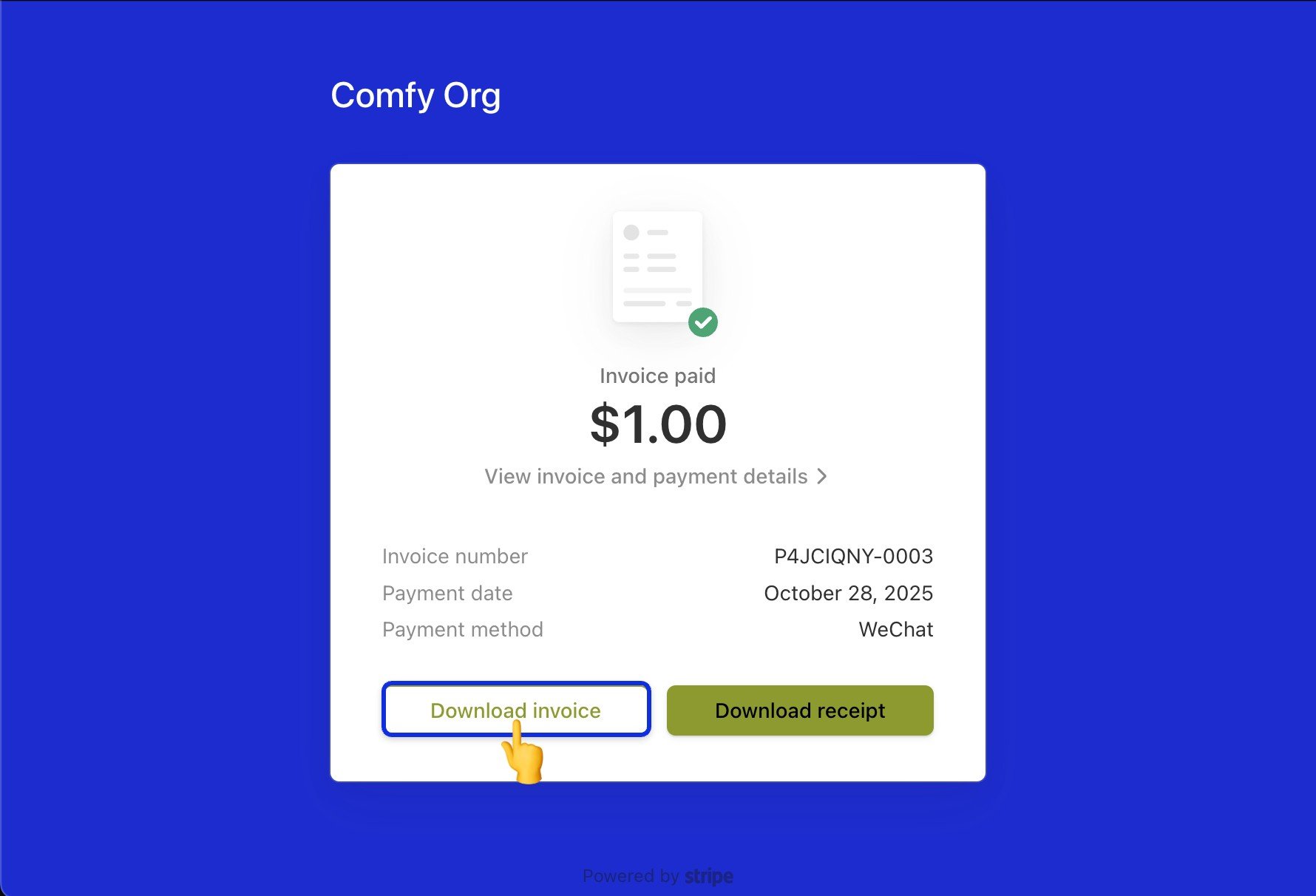
Stripe 포털에서 청구서 내역 목록의 항목을 열어 상세 정보를 확인하고 PDF 복사본을 다운로드하세요.
*Stripe 결제 포털에서 청구서 목록을 확인하세요.*
## 청구서 다운로드하기
Stripe 포털에서 청구서 내역 목록의 항목을 열어 상세 정보를 확인하고 PDF 복사본을 다운로드하세요.
 새로운 청구서가 생성되기 전에 결제 정보가 정확한지 확인해 주세요. [결제 정보 수정](/support/payment/editing-payment-information)에서 업데이트해 주세요.