> ## Documentation Index
> Fetch the complete documentation index at: https://dripart-feat-openapi-i18n.mintlify.site/llms.txt
> Use this file to discover all available pages before exploring further.
# 管理安装
> 启动、更新、快照和管理 ComfyUI 安装
## 管理面板
管理面板内容因实例类型而异。本页截图演示的是**本地独立安装**版本的界面。云端和远程连接实例的标签页和设置较少。
在实例卡片的 ⋮ 菜单中选择 **Manage** 打开设置面板。
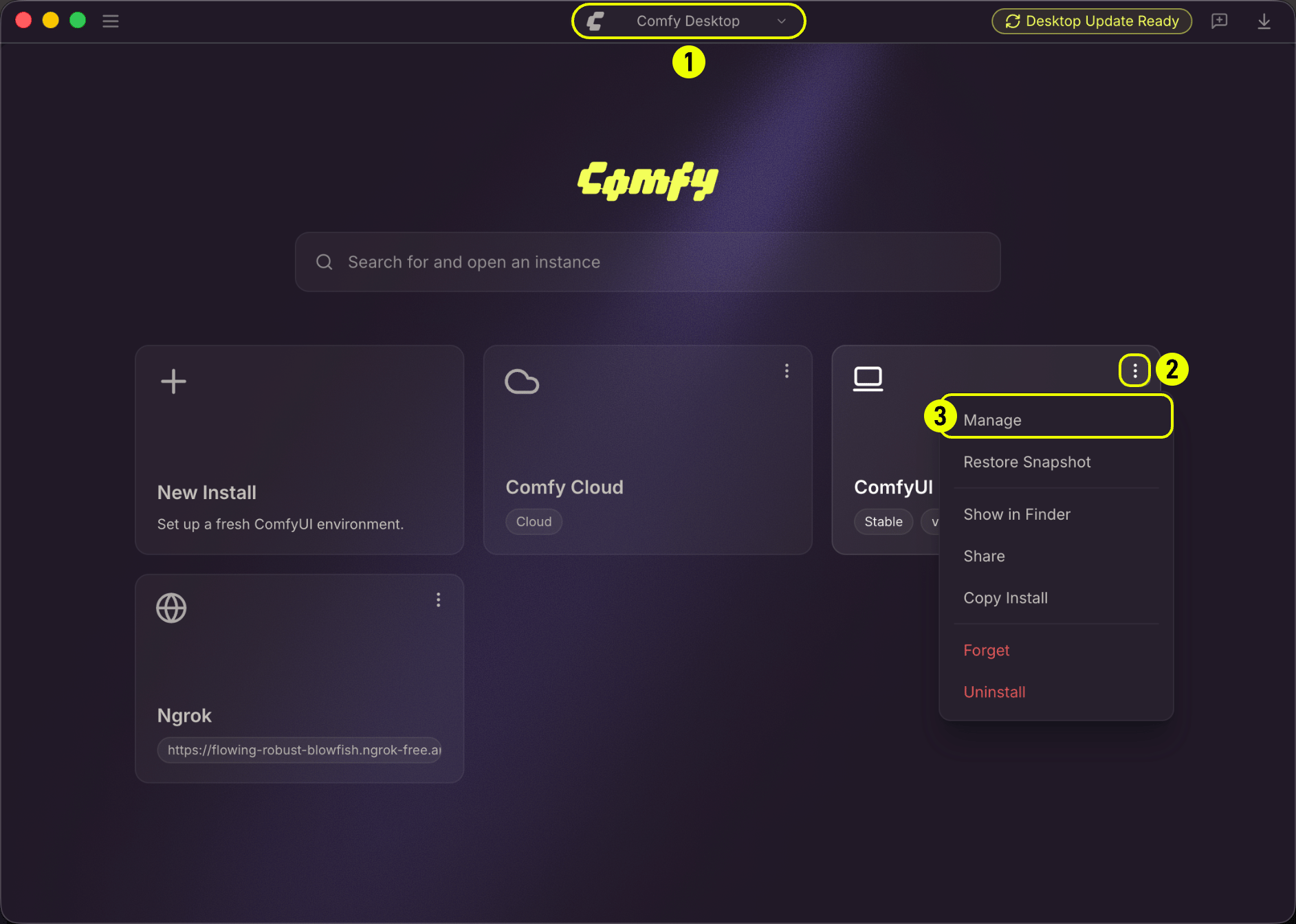 * 打开 **Chooser** 视图(显示所有实例的主界面)
* 点击实例卡片上的 ⋮ 图标
* 从菜单选择 **Manage**
面板包含六个标签页:
### 更新(Update)
* 打开 **Chooser** 视图(显示所有实例的主界面)
* 点击实例卡片上的 ⋮ 图标
* 从菜单选择 **Manage**
面板包含六个标签页:
### 更新(Update)
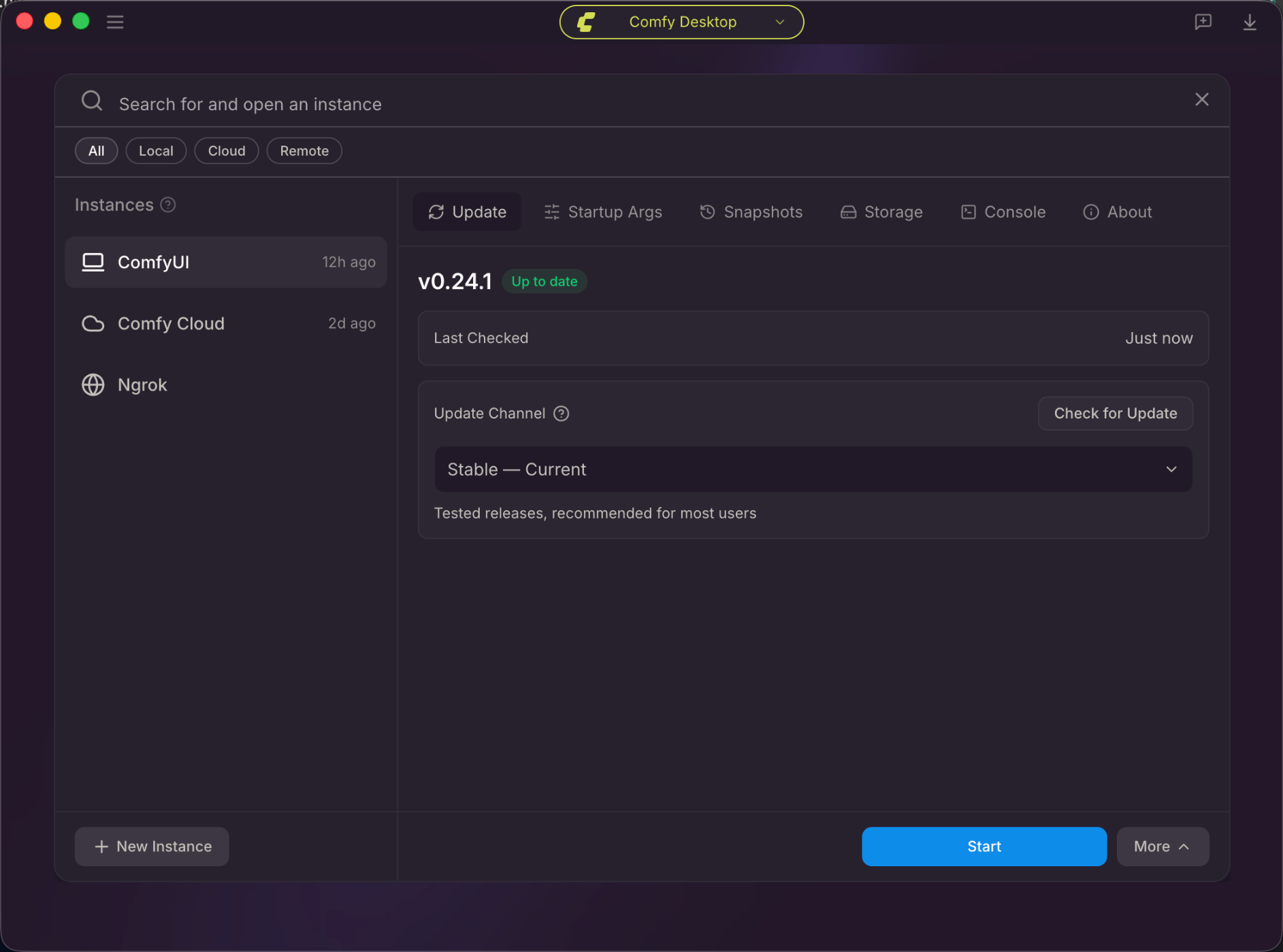 查看当前版本、检查更新、配置更新频道。
* **版本**:显示当前已安装版本及是否为最新。
* **上次检查**:显示上次检查更新时间。
* **检查更新**:手动检查新版本。
* **更新频道**:从下拉菜单选择:
* **Stable** — 经过测试的版本,推荐大多数用户使用。默认选项。
* **Latest on GitHub** — GitHub master 分支的最新提交。
### 启动参数(Startup Args)
查看当前版本、检查更新、配置更新频道。
* **版本**:显示当前已安装版本及是否为最新。
* **上次检查**:显示上次检查更新时间。
* **检查更新**:手动检查新版本。
* **更新频道**:从下拉菜单选择:
* **Stable** — 经过测试的版本,推荐大多数用户使用。默认选项。
* **Latest on GitHub** — GitHub master 分支的最新提交。
### 启动参数(Startup Args)
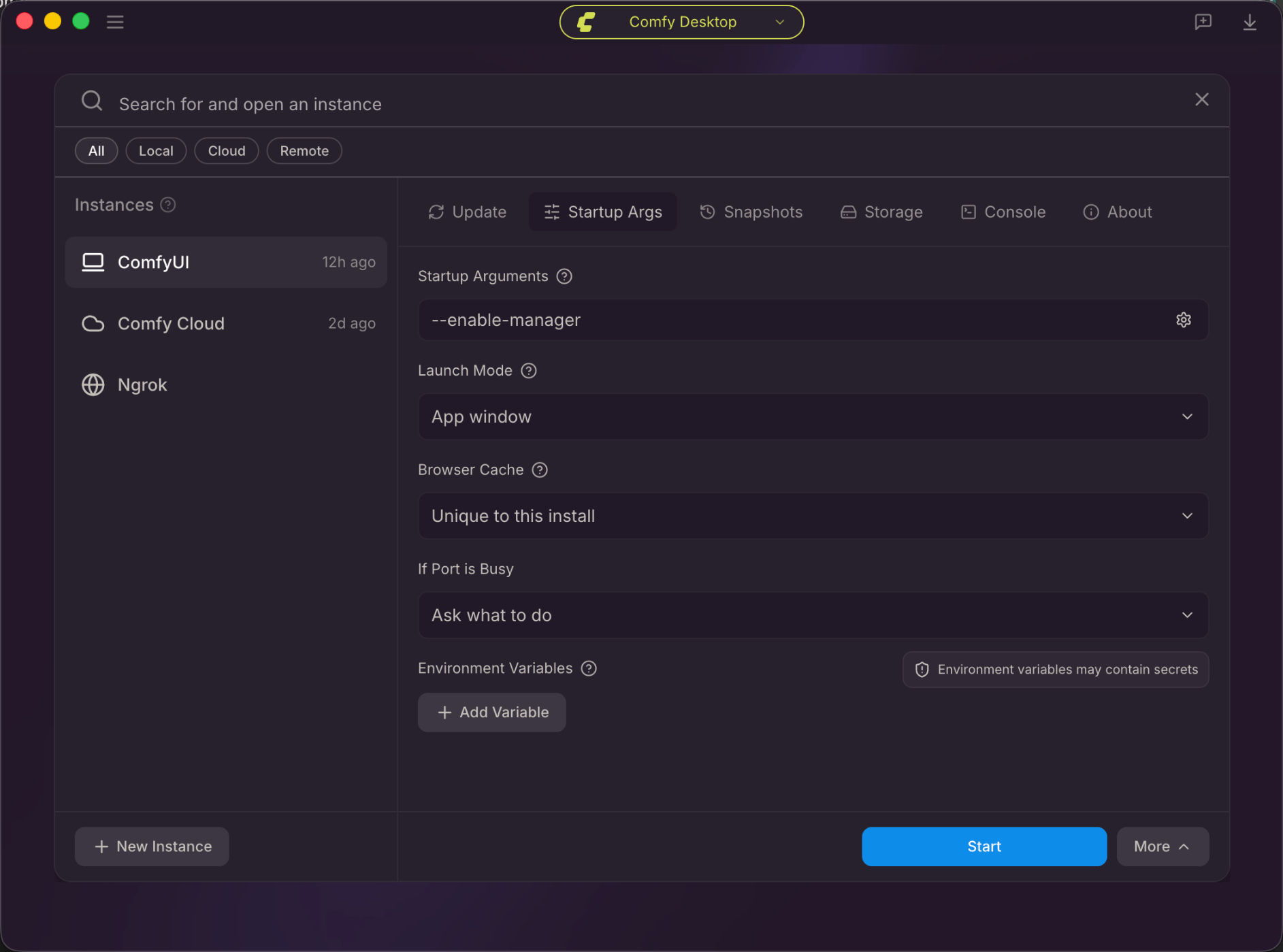 配置启动 CLI 参数、启动模式、浏览器缓存共享方式、端口冲突行为和环境变量。
* **启动参数**:自定义 CLI 参数(如 `--enable-manager`)。点击齿轮图标查看选项。
* **启动模式**:选择 **应用窗口** 或 **浏览器标签页**。
* **浏览器缓存**:**此安装独有** 或 **跨实例共享**。
* **端口被占用时**:**询问如何处理**、**自动选择不同端口** 或 **启动失败**。
* **环境变量**:点击 **+ 添加变量** 添加自定义环境变量。
查看 ComfyUI 启动参数的完整列表。
### 快照(Snapshots)
配置启动 CLI 参数、启动模式、浏览器缓存共享方式、端口冲突行为和环境变量。
* **启动参数**:自定义 CLI 参数(如 `--enable-manager`)。点击齿轮图标查看选项。
* **启动模式**:选择 **应用窗口** 或 **浏览器标签页**。
* **浏览器缓存**:**此安装独有** 或 **跨实例共享**。
* **端口被占用时**:**询问如何处理**、**自动选择不同端口** 或 **启动失败**。
* **环境变量**:点击 **+ 添加变量** 添加自定义环境变量。
查看 ComfyUI 启动参数的完整列表。
### 快照(Snapshots)
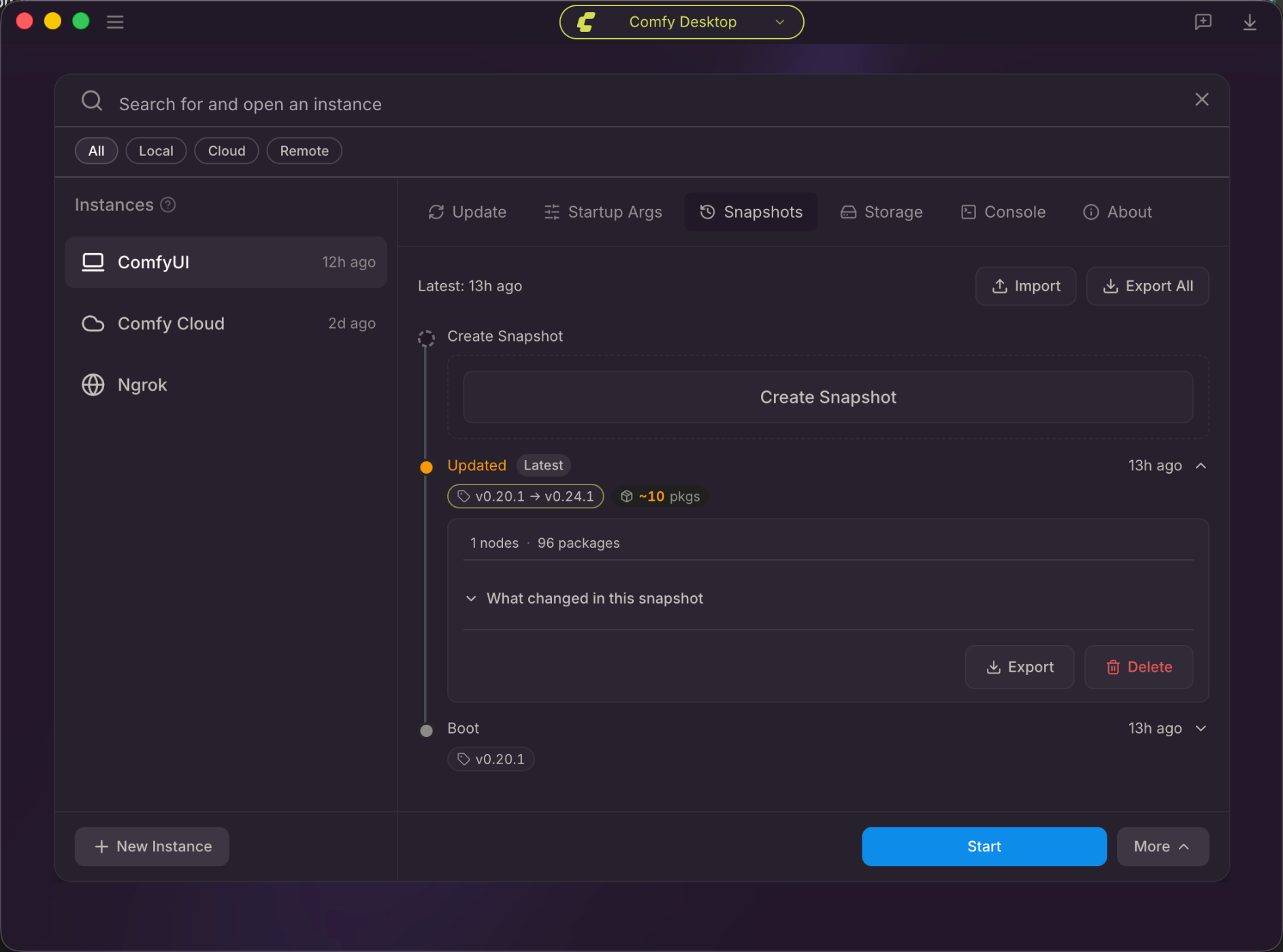 查看、导入、导出和创建快照。每条记录显示版本变更和包统计。
* **时间线**:按时间顺序列出所有快照,显示版本变更和统计。
* **最新**:显示最近快照的创建时间。
* **导入**:从文件导入快照。
* **导出全部**:备份导出所有快照。
* **创建快照**:随时手动创建新快照。
* 每个快照条目显示:
* 版本变更(如 `v0.20.1 → v0.24.1`)
* 包变更数
* 节点和包数量统计
* **导出** 和 **删除** 按钮
了解自动快照、快照对比和完整的快照管理功能。
### 存储(Storage)
查看、导入、导出和创建快照。每条记录显示版本变更和包统计。
* **时间线**:按时间顺序列出所有快照,显示版本变更和统计。
* **最新**:显示最近快照的创建时间。
* **导入**:从文件导入快照。
* **导出全部**:备份导出所有快照。
* **创建快照**:随时手动创建新快照。
* 每个快照条目显示:
* 版本变更(如 `v0.20.1 → v0.24.1`)
* 包变更数
* 节点和包数量统计
* **导出** 和 **删除** 按钮
了解自动快照、快照对比和完整的快照管理功能。
### 存储(Storage)
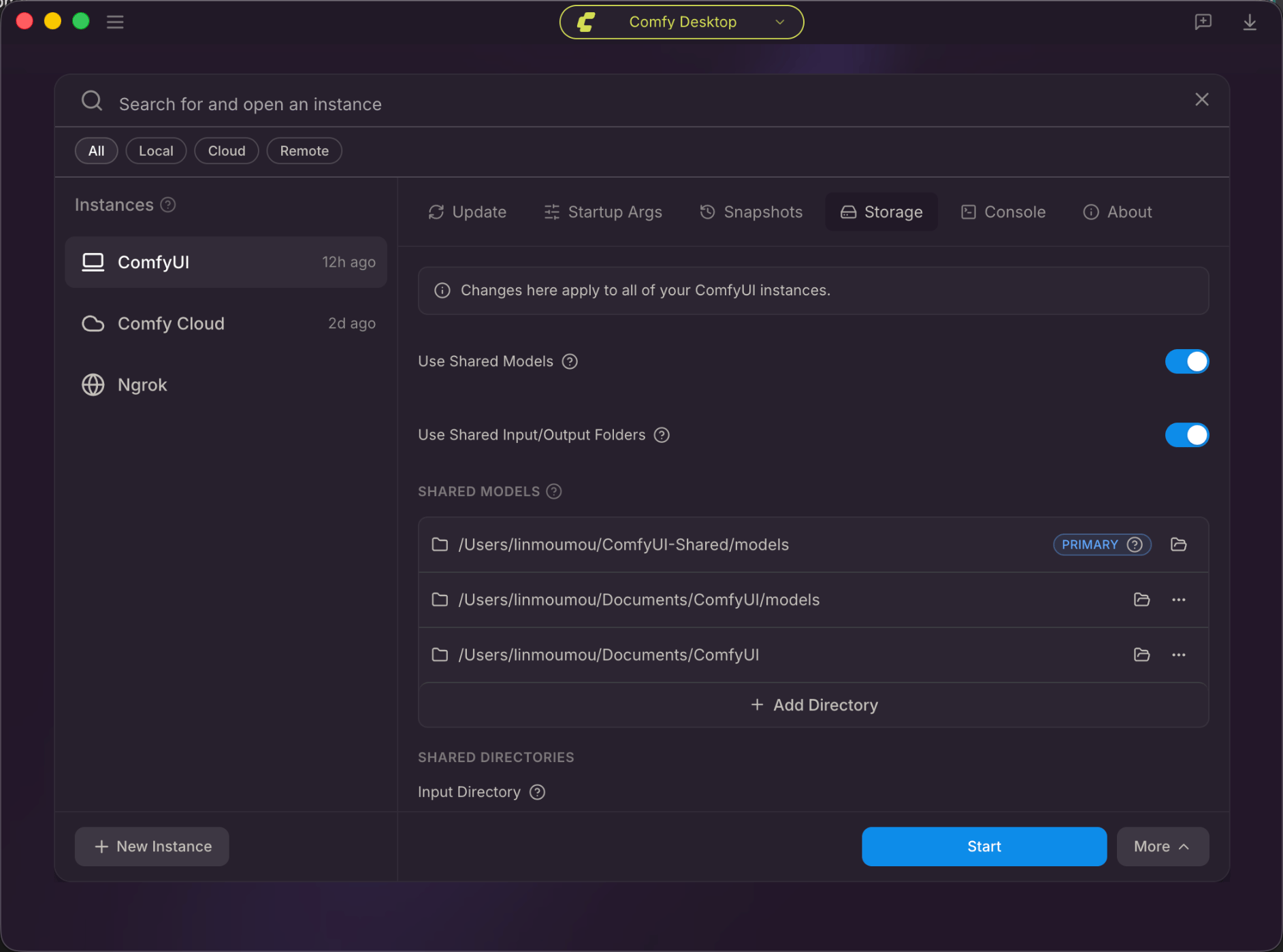 配置共享模型和输入/输出目录的使用开关,查看共享模型列表及 Primary 目录。
* **使用共享模型**:切换此实例是否使用共享模型目录。
* **使用共享输入/输出文件夹**:切换此实例是否使用共享输入输出路径。
* **共享模型**:列出所有共享模型目录。**主要**目录为新模型默认保存位置。详见[设置存储](/zh/installation/desktop/usage/settings#storage)。
* **输入目录**:此实例查找输入文件的目录。
* **输出目录**:此实例保存生成结果的目录。
### 控制台(Console)
配置共享模型和输入/输出目录的使用开关,查看共享模型列表及 Primary 目录。
* **使用共享模型**:切换此实例是否使用共享模型目录。
* **使用共享输入/输出文件夹**:切换此实例是否使用共享输入输出路径。
* **共享模型**:列出所有共享模型目录。**主要**目录为新模型默认保存位置。详见[设置存储](/zh/installation/desktop/usage/settings#storage)。
* **输入目录**:此实例查找输入文件的目录。
* **输出目录**:此实例保存生成结果的目录。
### 控制台(Console)
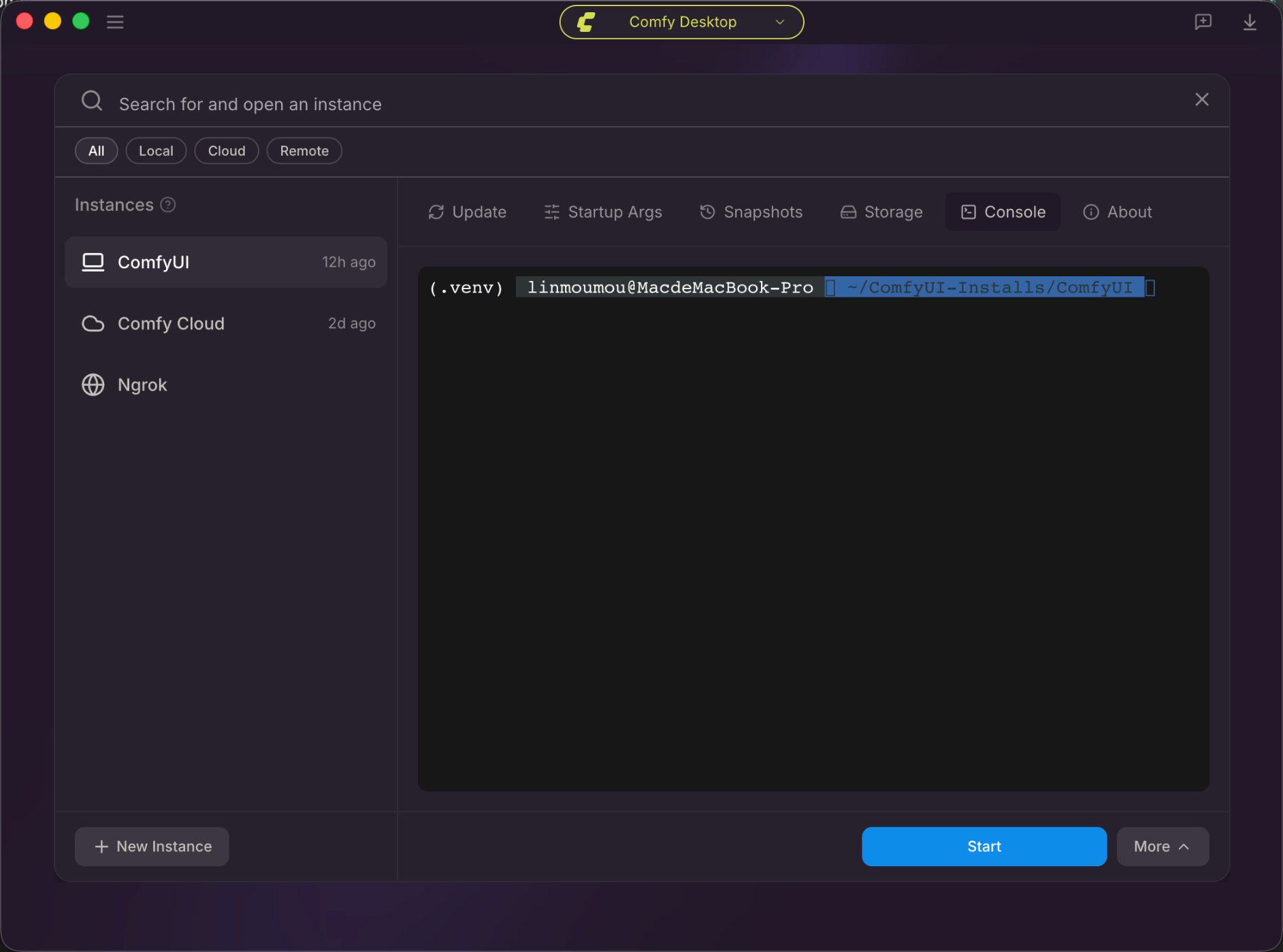 实时查看 ComfyUI 后端进程输出,用于调试启动日志和错误。
实时终端,显示 ComfyUI 后端进程输出。
* 可用于调试,实时查看启动日志、错误和 Python 输出。
### 关于(About)
实时查看 ComfyUI 后端进程输出,用于调试启动日志和错误。
实时终端,显示 ComfyUI 后端进程输出。
* 可用于调试,实时查看启动日志、错误和 Python 输出。
### 关于(About)
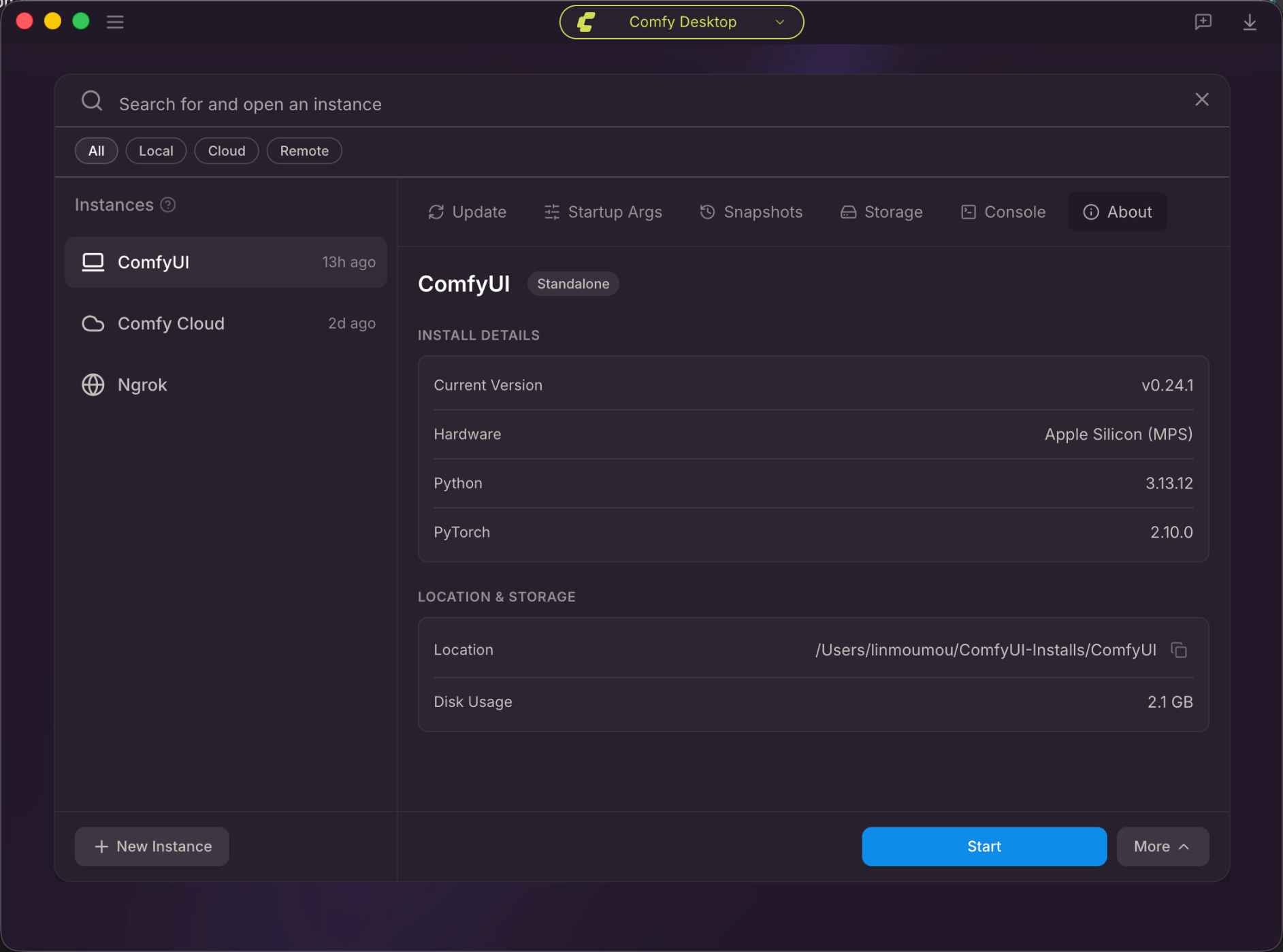 查看安装详情:ComfyUI 版本、硬件、Python 和 PyTorch 版本、磁盘路径和用量。
* **当前版本**:已安装的 ComfyUI 版本。
* **硬件**:检测到的硬件(如 `Apple Silicon (MPS)`)。
* **Python**:捆绑的 Python 版本。
* **PyTorch**:包含的 PyTorch 版本。
* **位置**:磁盘上的完整安装路径。点击复制按钮复制。
* **磁盘使用量**:安装占用的磁盘空间。
## 安装操作
右键点击安装卡片(或点击 ⋮ 图标)访问操作。详见[实例管理](/zh/installation/desktop/usage/instance-management)页面。
查看安装详情:ComfyUI 版本、硬件、Python 和 PyTorch 版本、磁盘路径和用量。
* **当前版本**:已安装的 ComfyUI 版本。
* **硬件**:检测到的硬件(如 `Apple Silicon (MPS)`)。
* **Python**:捆绑的 Python 版本。
* **PyTorch**:包含的 PyTorch 版本。
* **位置**:磁盘上的完整安装路径。点击复制按钮复制。
* **磁盘使用量**:安装占用的磁盘空间。
## 安装操作
右键点击安装卡片(或点击 ⋮ 图标)访问操作。详见[实例管理](/zh/installation/desktop/usage/instance-management)页面。