> ## Documentation Index
> Fetch the complete documentation index at: https://dripart-feat-openapi-i18n.mintlify.site/llms.txt
> Use this file to discover all available pages before exploring further.
# 使用 ComfyUI-Manager 进行自定义节点管理(旧版 UI)
> 使用 ComfyUI-Manager 旧版界面安装、更新和管理自定义节点
## ComfyUI 自定义节点管理
了解如果通过 Manager 安装管理自定义节点
### 安装节点
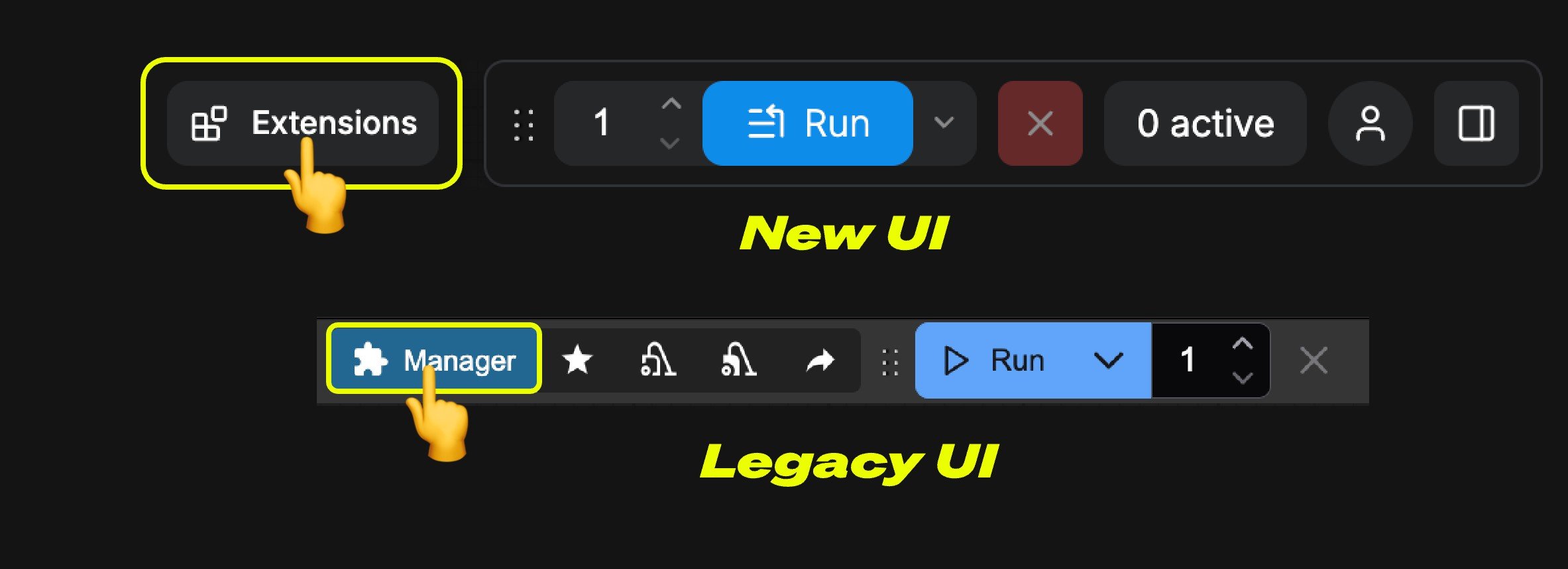
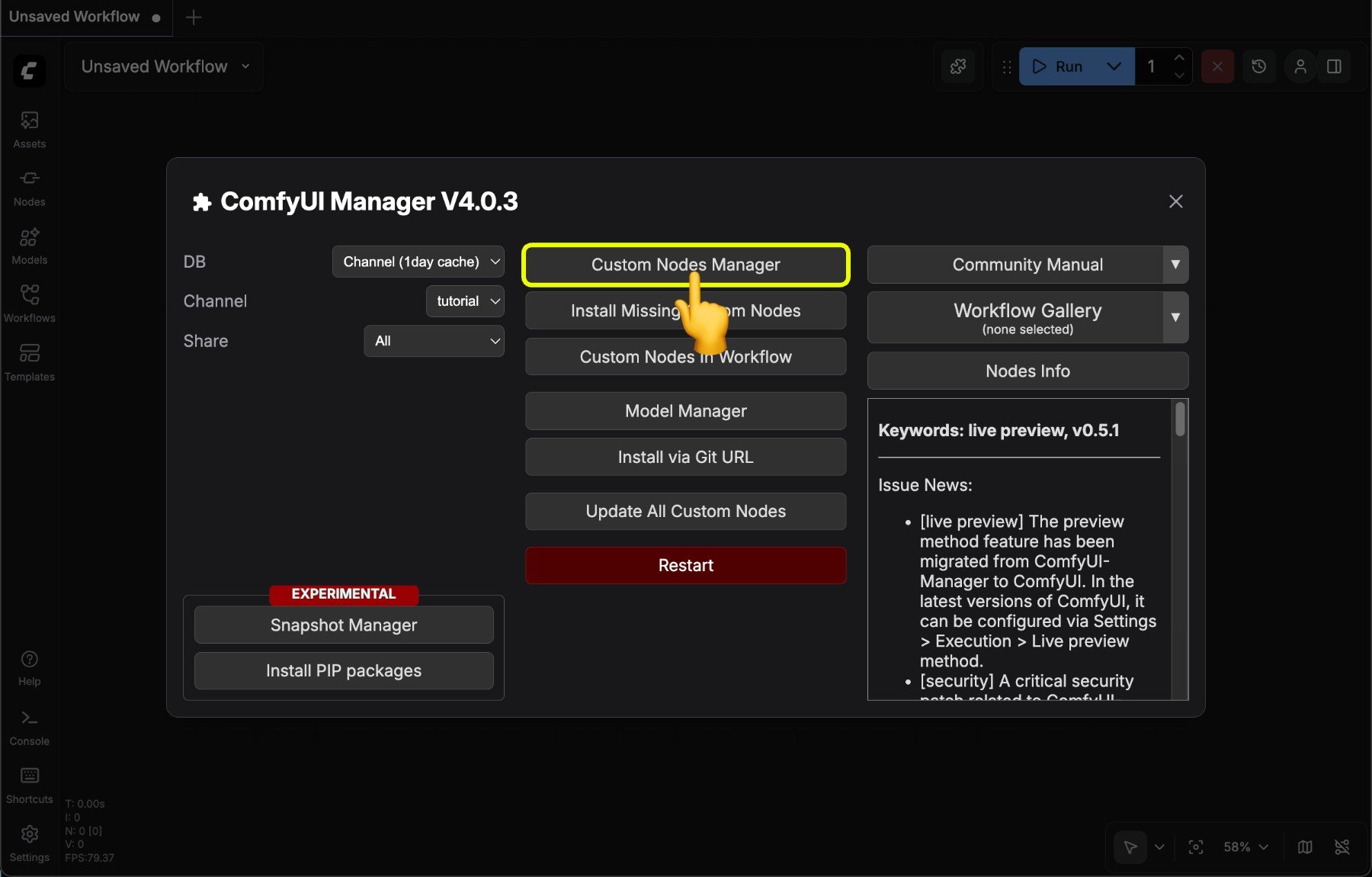
点击主菜单(顶部栏)上的 **Manager** 按钮。
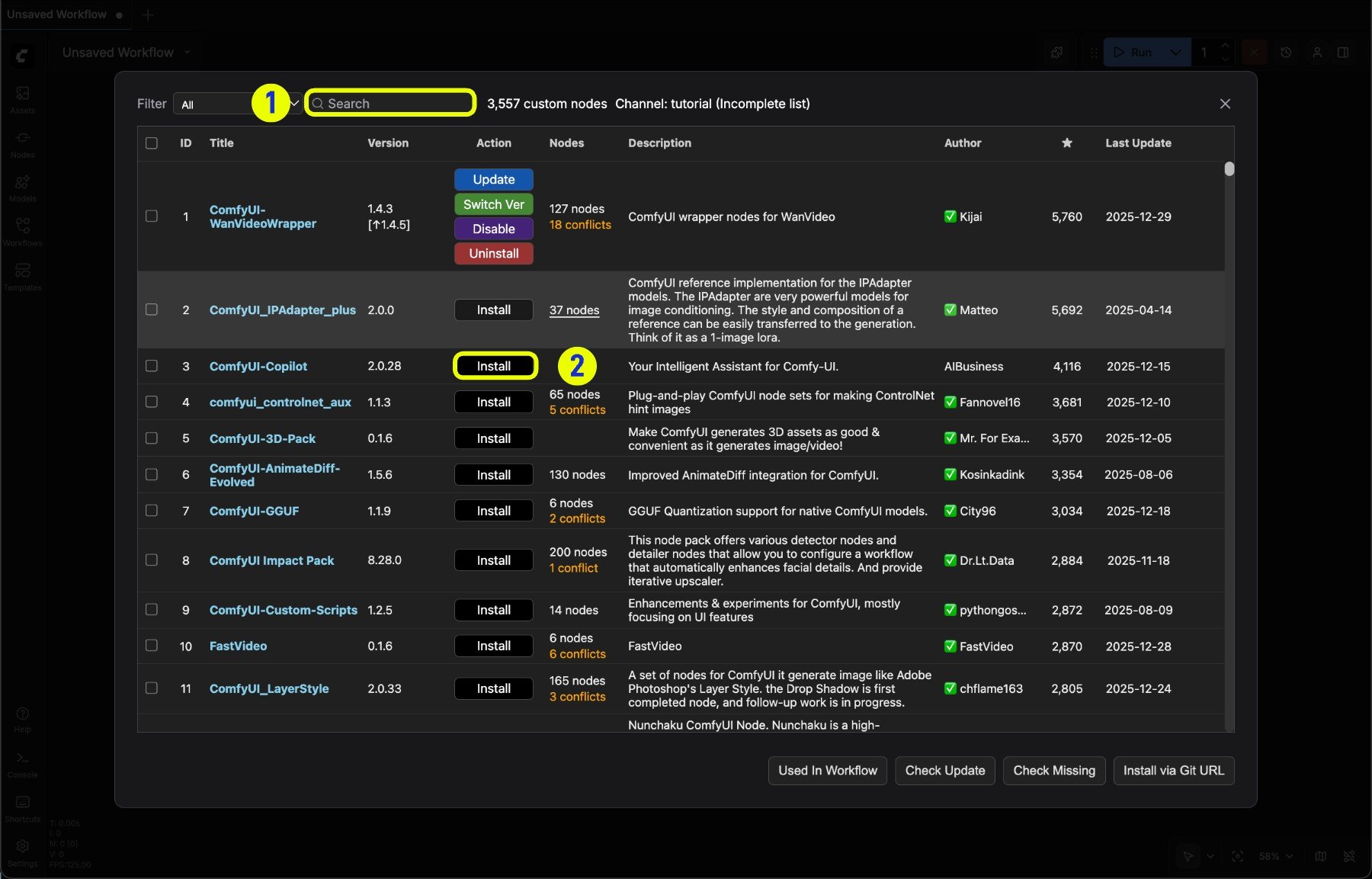
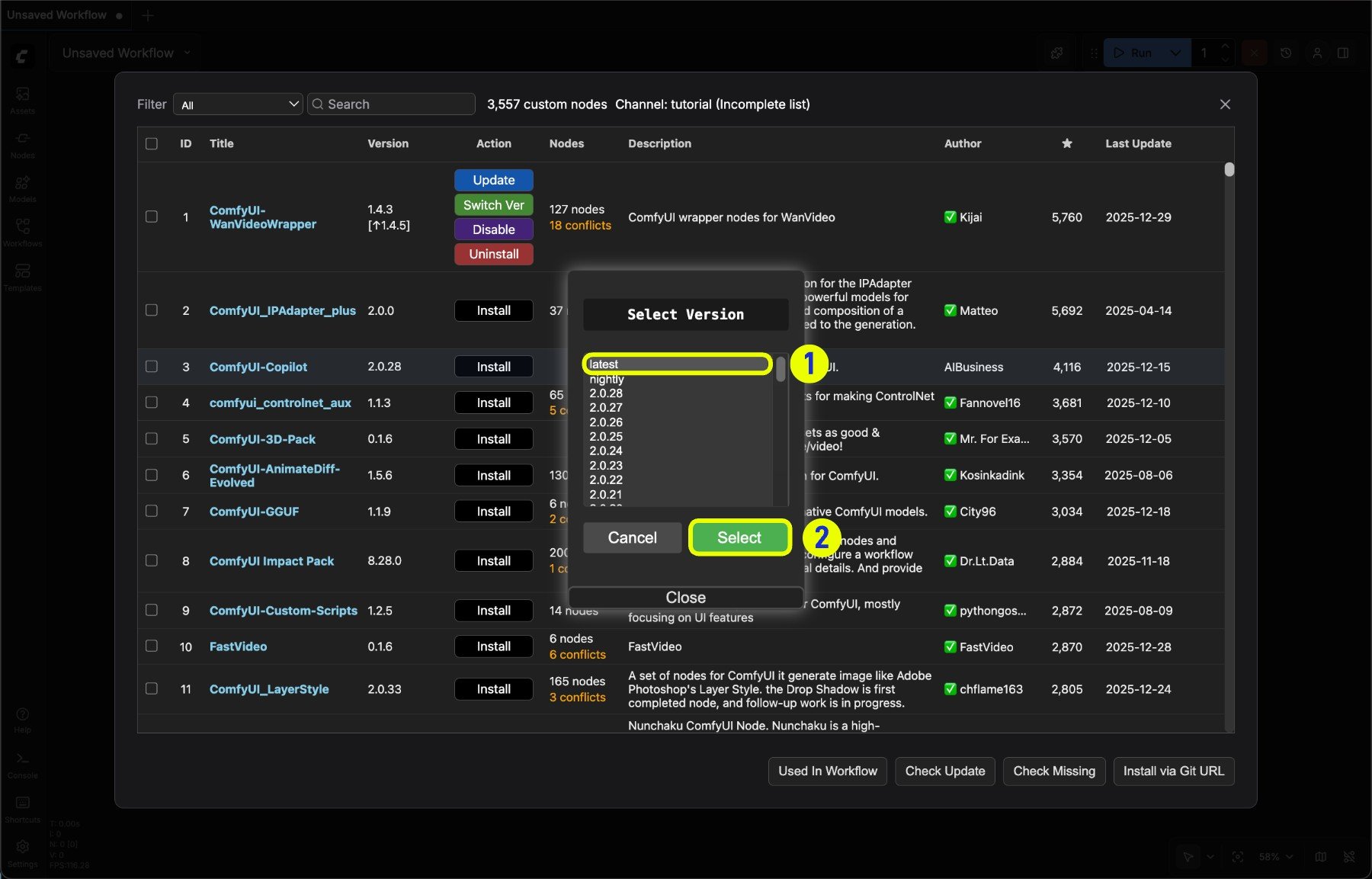 1. 如果有 **latest(最新版)** 的情况下首选最新版
2. 点击 **Select** 进行节点安装
* 带有数字的版本号为作者发布到 [registry](https://registry.comfy.org/) 的版本,相当于稳定发布版
* nightly 为作者更新到 github 的最新版本,相当于开发版,通常未经安全扫描,存在不稳定因素
ComfyUI 默认的安全设置并不允许直接安装 **nightly** 版本,你可以参考 [安全策略](/zh/manager/troubleshooting#安全策略) 了解
点击安装后 Manager 会自动完成依赖的安装,并会在安装完成后提示你重启 ComfyUI
1. 如果有 **latest(最新版)** 的情况下首选最新版
2. 点击 **Select** 进行节点安装
* 带有数字的版本号为作者发布到 [registry](https://registry.comfy.org/) 的版本,相当于稳定发布版
* nightly 为作者更新到 github 的最新版本,相当于开发版,通常未经安全扫描,存在不稳定因素
ComfyUI 默认的安全设置并不允许直接安装 **nightly** 版本,你可以参考 [安全策略](/zh/manager/troubleshooting#安全策略) 了解
点击安装后 Manager 会自动完成依赖的安装,并会在安装完成后提示你重启 ComfyUI
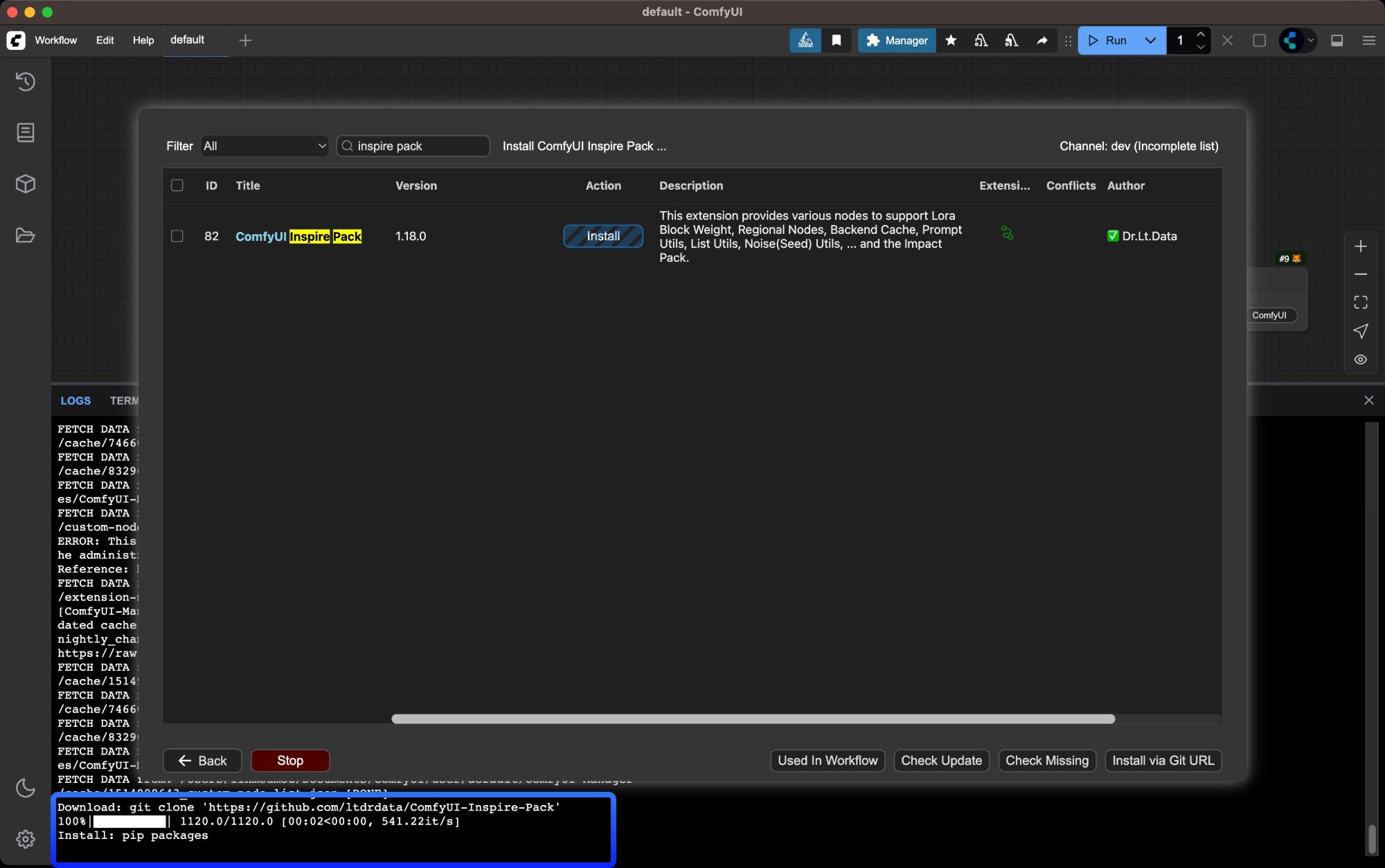
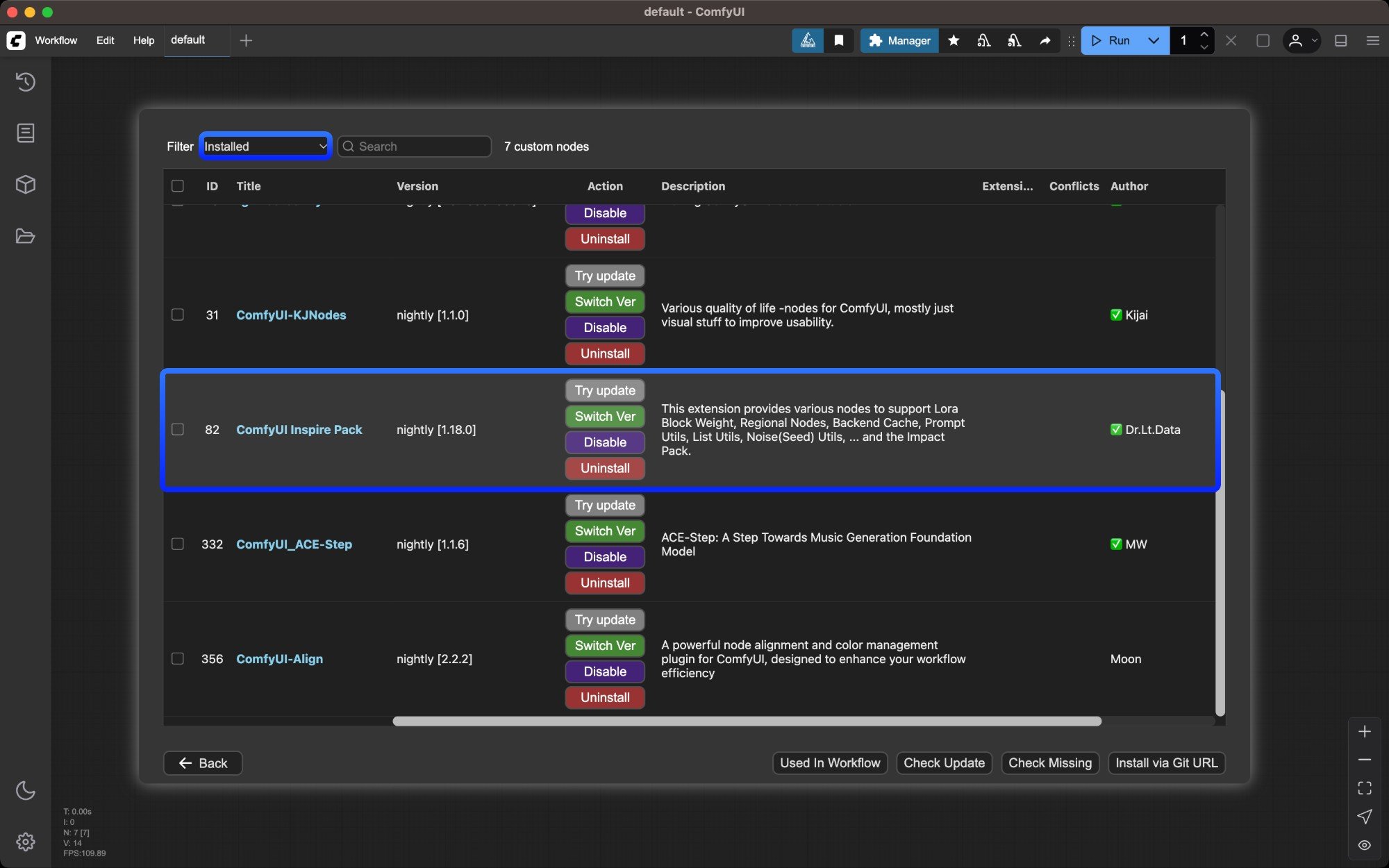
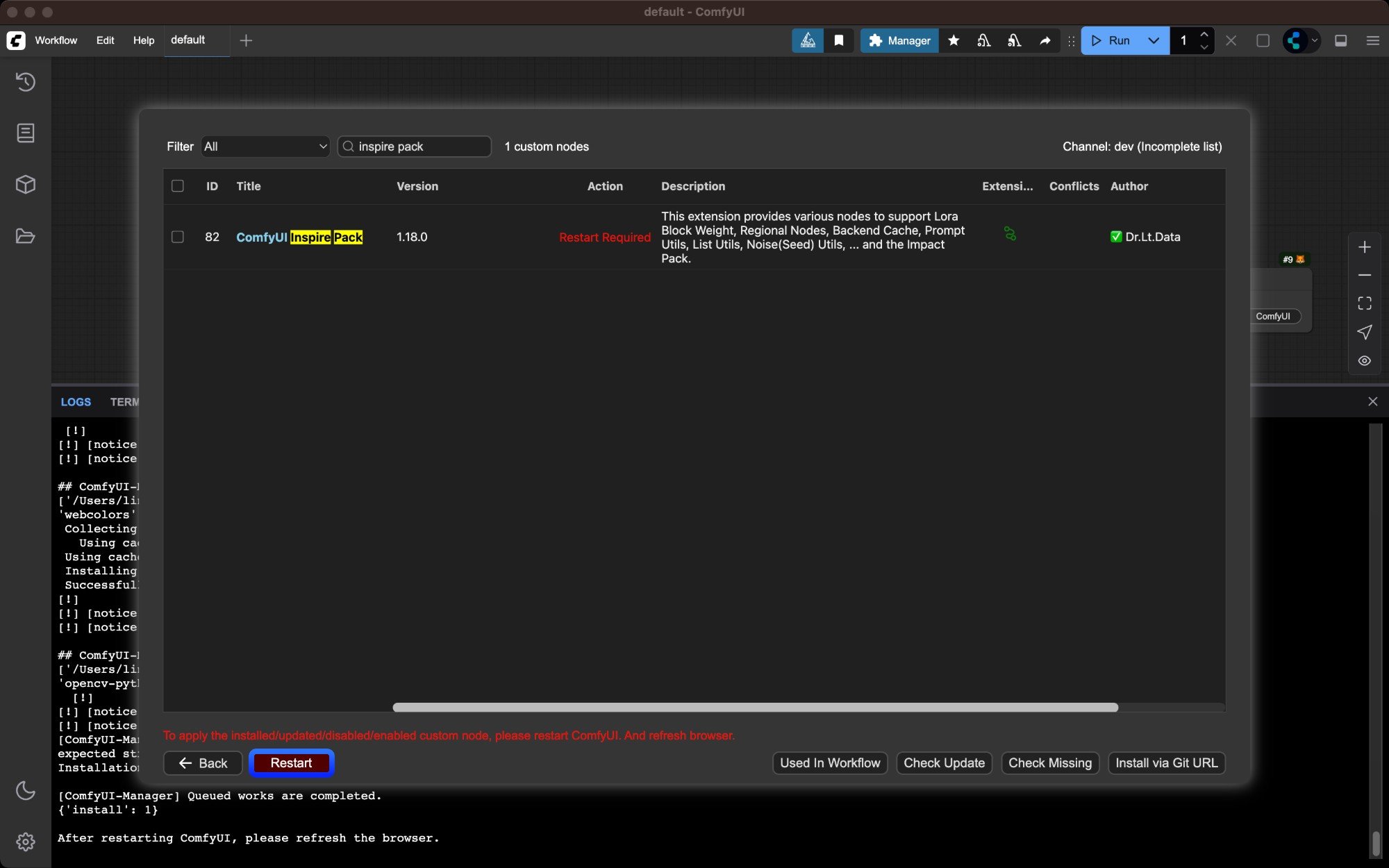 重启后在 ComfyUI Manager 中检查对应的插件是否安装成功, 是否出现`import failed`的错误提示
 ### 安装缺失节点
当加载工作流时,节点缺失是常见的一种情况,通常节点缺失存在两种情况
1. 核心节点缺失: ComfyUI 版本不是最新版本,请参考 [更新ComfyUI](/zh/installation/update_comfyui) 更新ComfyUI
2. 自定义节点缺失: 第三方的自定义节点缺失,可以参考文本指南进行安装
当安装完成 ComfyUI-Manager 之后,对于导入的工作流如果存在自定义节点缺失,将会提醒对应缺失节点信息
### 安装缺失节点
当加载工作流时,节点缺失是常见的一种情况,通常节点缺失存在两种情况
1. 核心节点缺失: ComfyUI 版本不是最新版本,请参考 [更新ComfyUI](/zh/installation/update_comfyui) 更新ComfyUI
2. 自定义节点缺失: 第三方的自定义节点缺失,可以参考文本指南进行安装
当安装完成 ComfyUI-Manager 之后,对于导入的工作流如果存在自定义节点缺失,将会提醒对应缺失节点信息
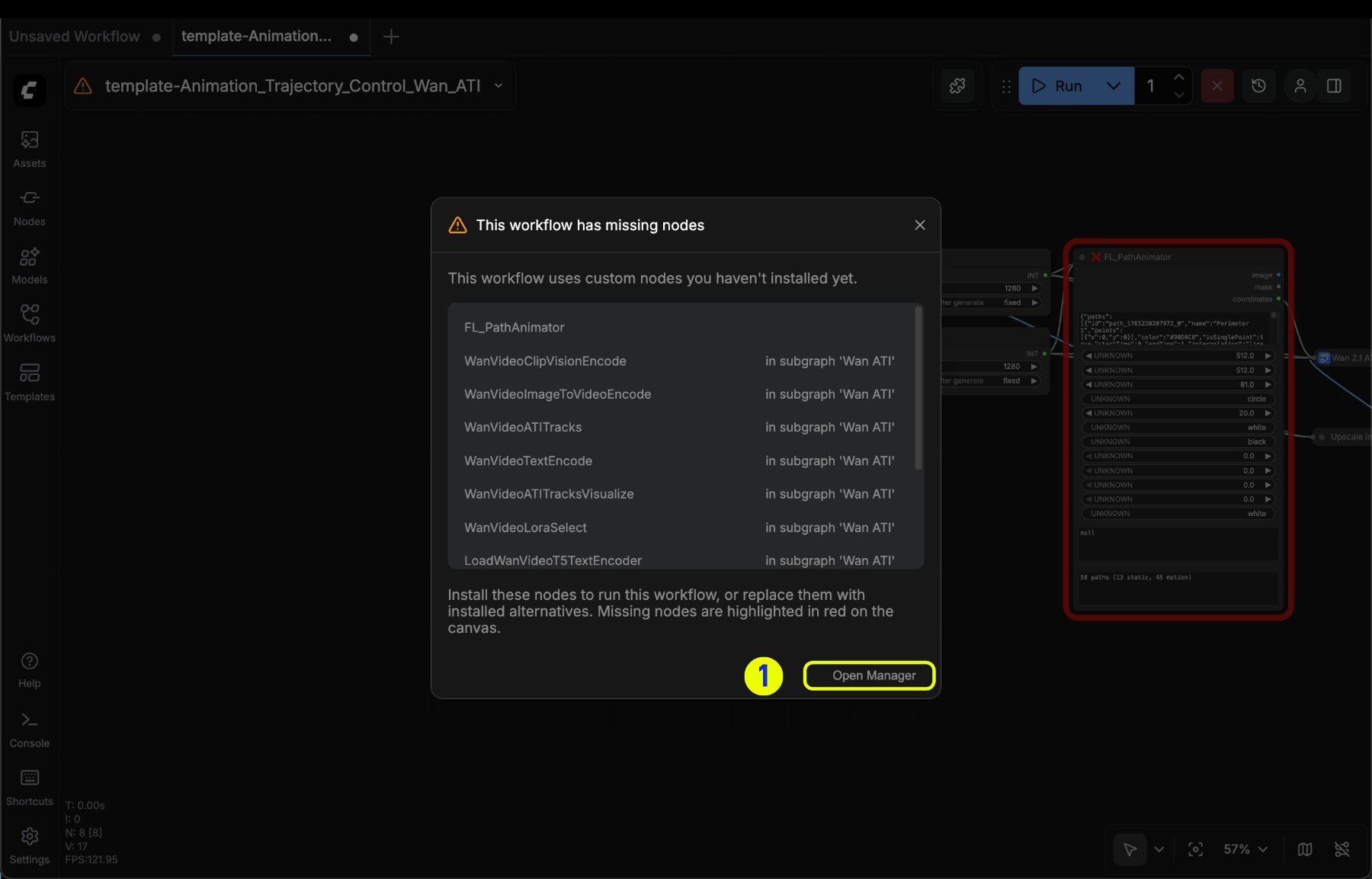 1. 点击 **打开管理器(Open Manager)** 激活对应选项
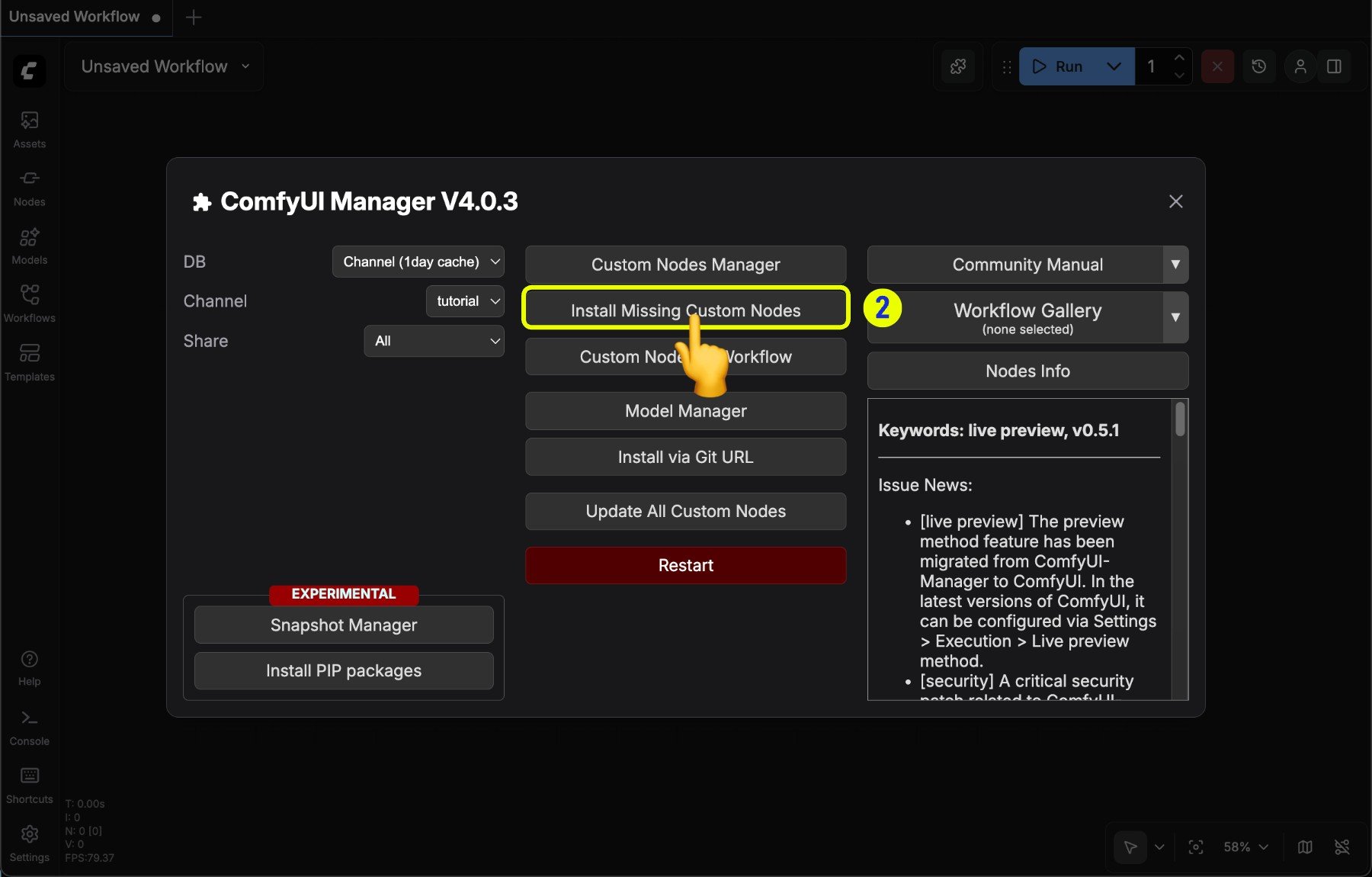 2\. 在 Manager 菜单点击 **Install Missing Custom Nodes** 进入缺失节点列表界面
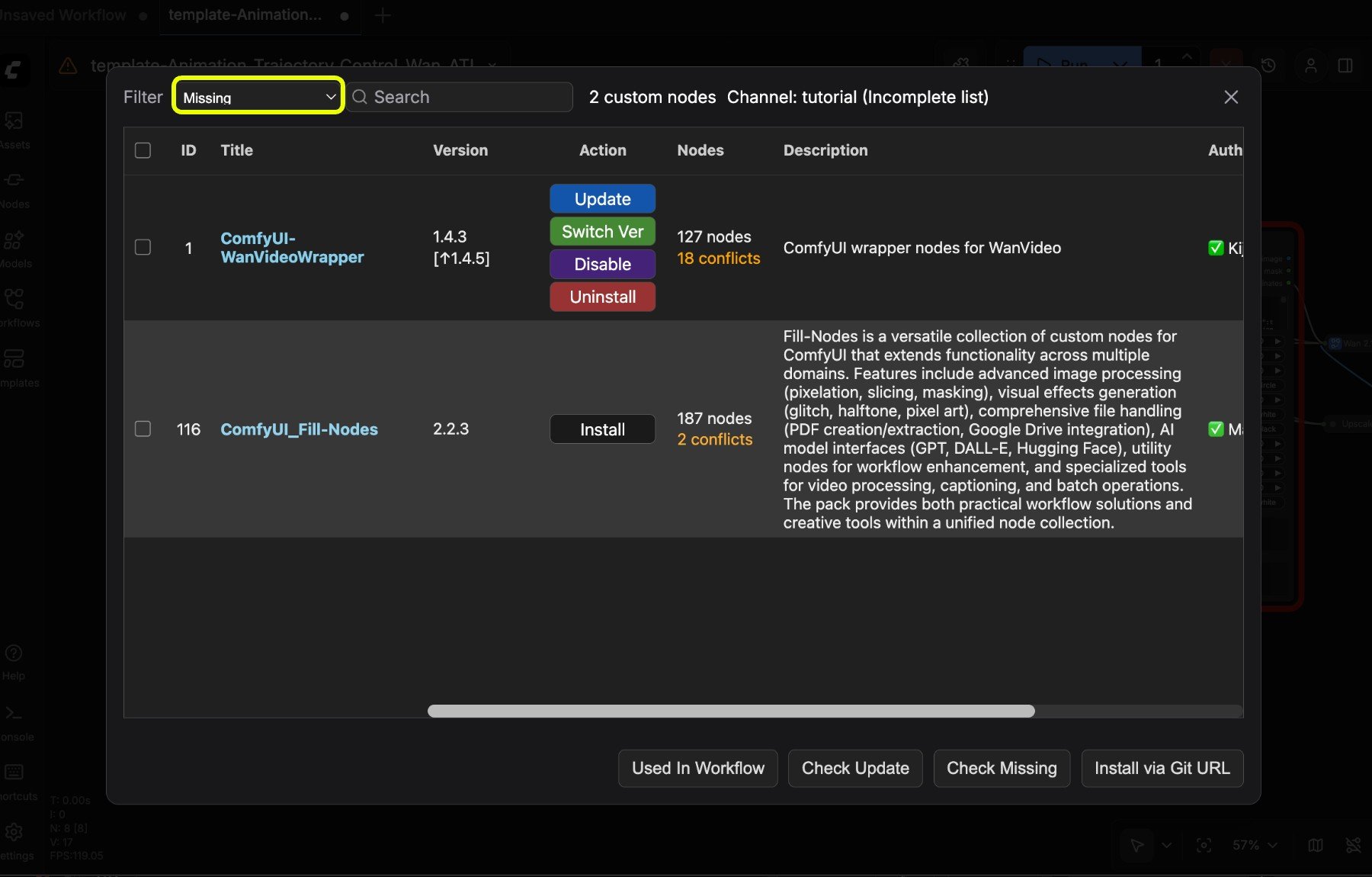 3\. 在对应节点列表查看对应的节点并安装
如果你发现缺失节点列表找不到对应的节点,通常有几种情况
1. 对应节点作者没有将自定义节点提交注册到 [registry](/zh/registry/overview)
2. 对应节点不是开源节点,可能是某些作者或者限定平台的限定节点
3. 原始作者版本变更删除了对应节点
### 更新节点
3\. 在对应节点列表查看对应的节点并安装
如果你发现缺失节点列表找不到对应的节点,通常有几种情况
1. 对应节点作者没有将自定义节点提交注册到 [registry](/zh/registry/overview)
2. 对应节点不是开源节点,可能是某些作者或者限定平台的限定节点
3. 原始作者版本变更删除了对应节点
### 更新节点
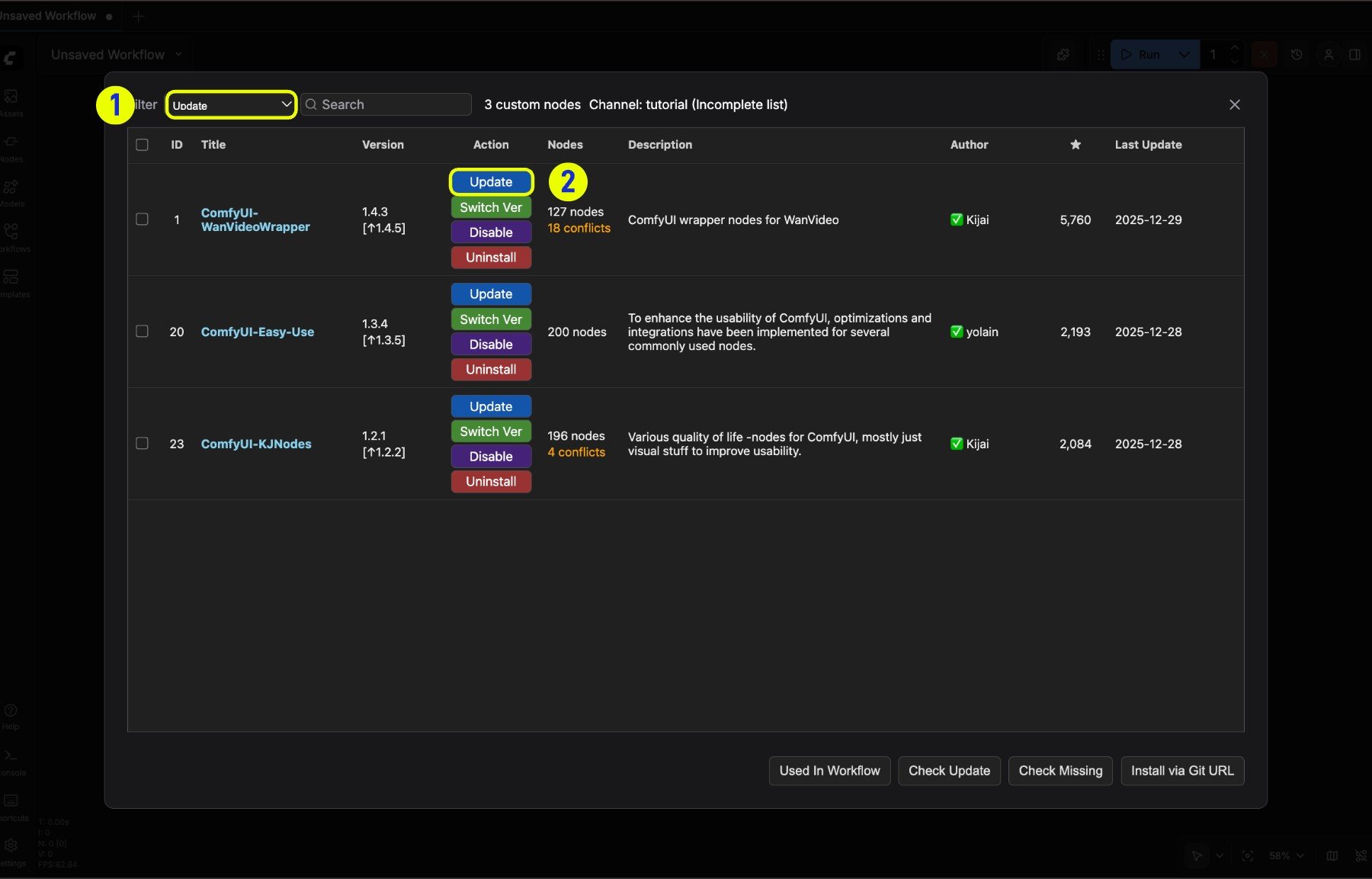 1. 切换筛选器(filter)到 **update** 筛选器,即可筛选出当前节点列表中可更新的节点
2. 点击 **Update** 按钮进行节点更新
### 删除节点
1. 切换筛选器(filter)到 **update** 筛选器,即可筛选出当前节点列表中可更新的节点
2. 点击 **Update** 按钮进行节点更新
### 删除节点
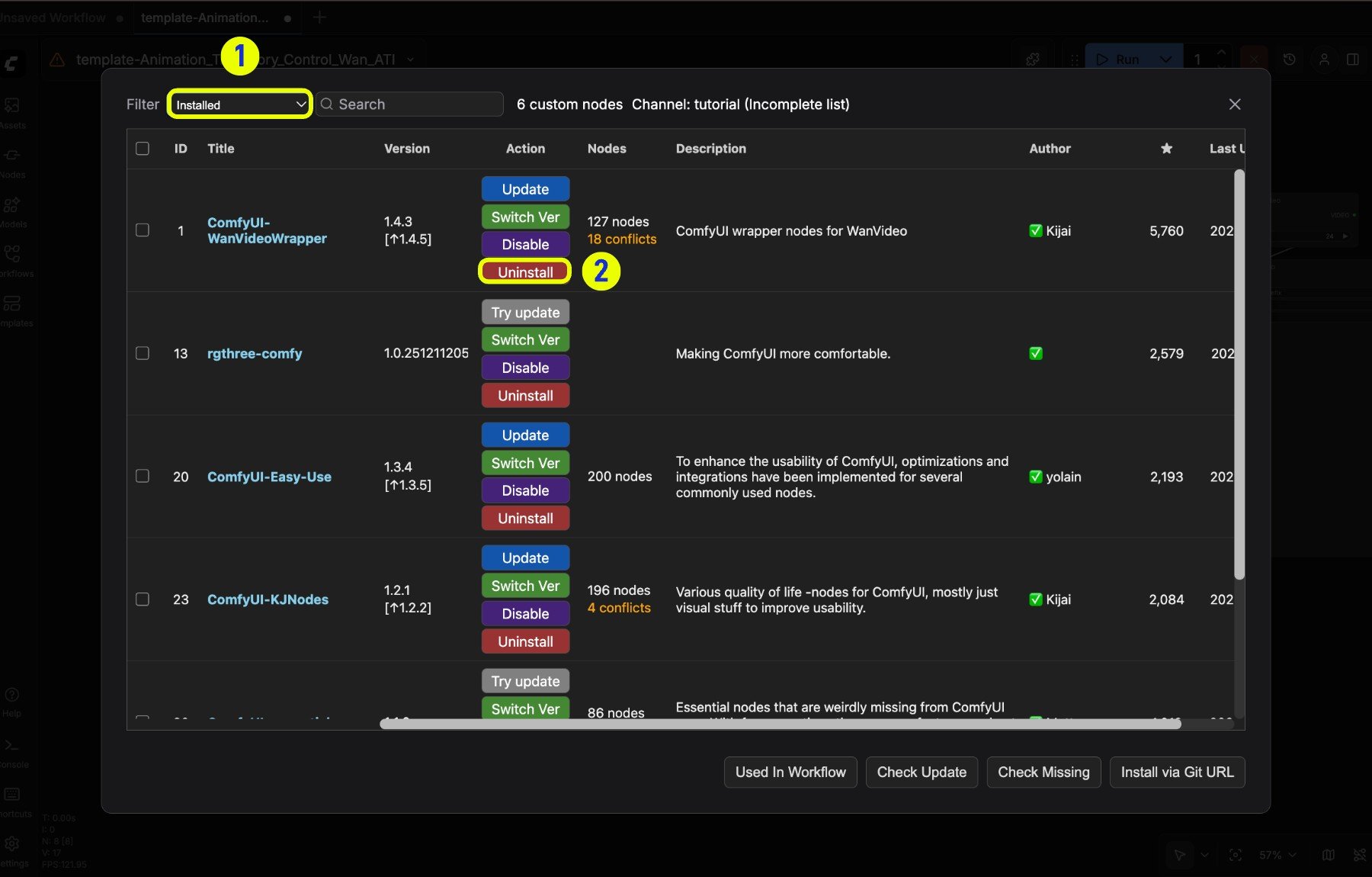 1. 在节点列表选择 "已安装(installed)" 筛选器,即可筛选出当前节点列表中已安装的节点
2. 点击对应节点右键选择 **Uninstall** 进行节点卸载
> 删除对应节点,并不会移除对应的依赖安装
其它安装 插件方法请参看下面的文章
了解如何手动安装自定义节点
## 快照管理器
快照保存您当前的安装状态,允许您恢复到之前的状态。
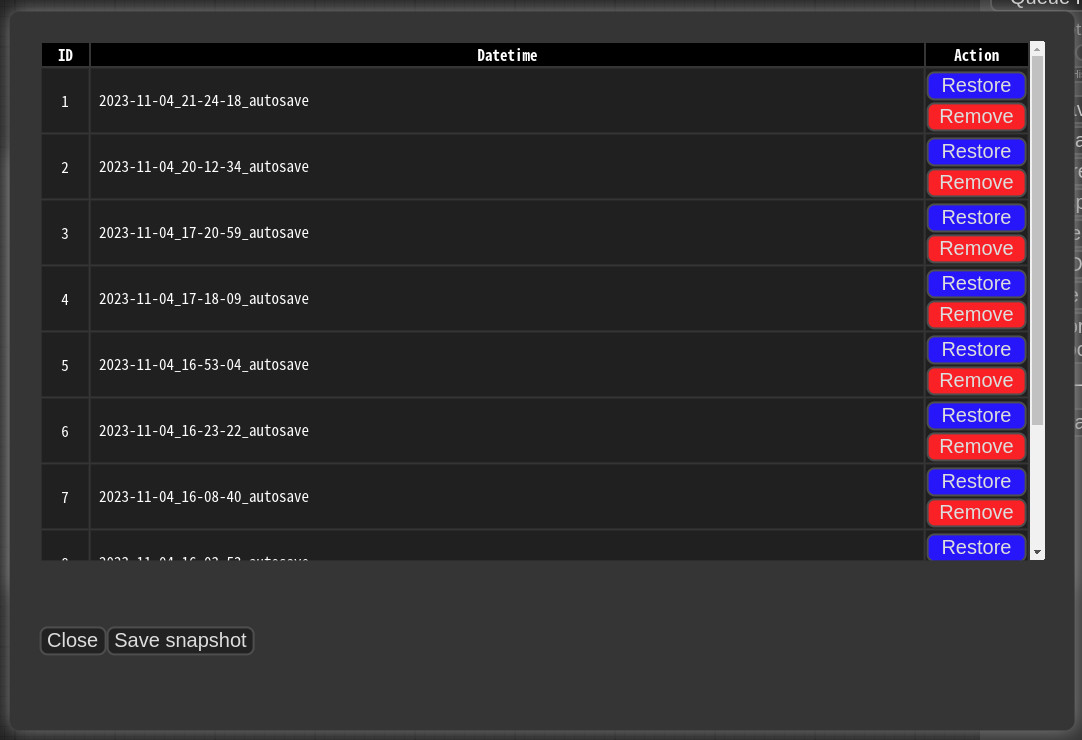
当您按下 **Save snapshot** 或使用 **Update All** 时,快照会自动保存。快照文件存储在:`/default/ComfyUI-Manager/snapshots`
要恢复:打开快照管理器,选择一个快照,然后按 **Restore**。
恢复在下次 ComfyUI 启动时生效。对于不由 Git 管理的自定义节点,快照支持不完整。
1. 在节点列表选择 "已安装(installed)" 筛选器,即可筛选出当前节点列表中已安装的节点
2. 点击对应节点右键选择 **Uninstall** 进行节点卸载
> 删除对应节点,并不会移除对应的依赖安装
其它安装 插件方法请参看下面的文章
了解如何手动安装自定义节点
## 快照管理器
快照保存您当前的安装状态,允许您恢复到之前的状态。

当您按下 **Save snapshot** 或使用 **Update All** 时,快照会自动保存。快照文件存储在:`/default/ComfyUI-Manager/snapshots`
要恢复:打开快照管理器,选择一个快照,然后按 **Restore**。
恢复在下次 ComfyUI 启动时生效。对于不由 Git 管理的自定义节点,快照支持不完整。